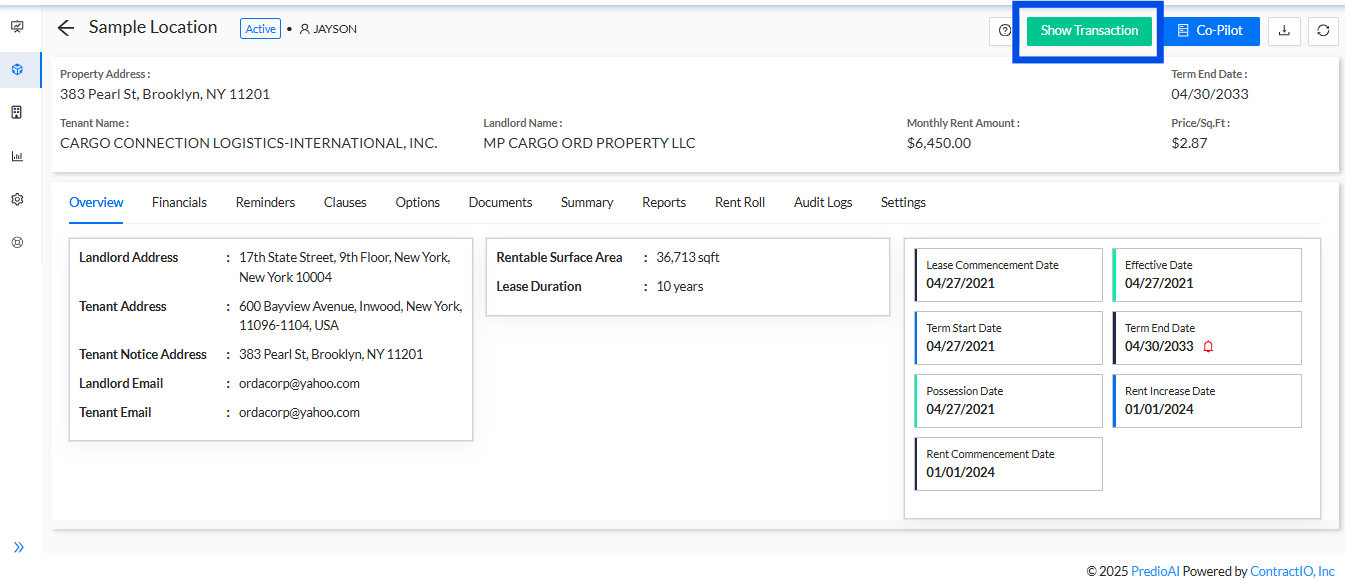
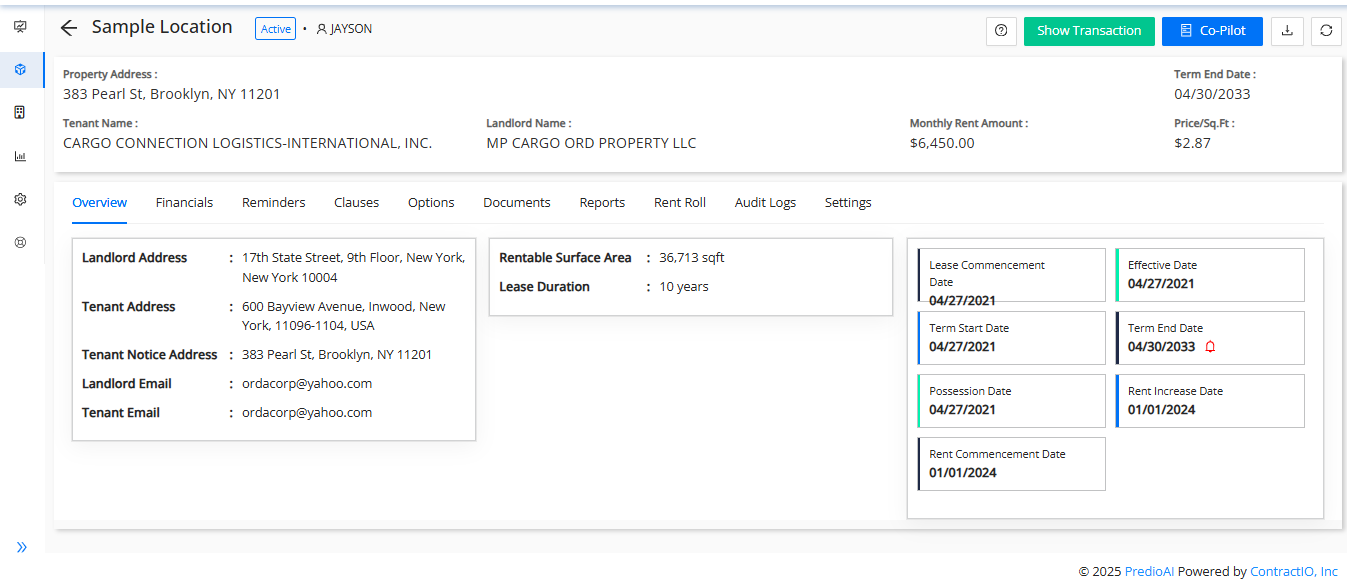
1. Initiating Transaction Management: To begin managing the transaction for a location, click the Show Transaction button on the overview page.
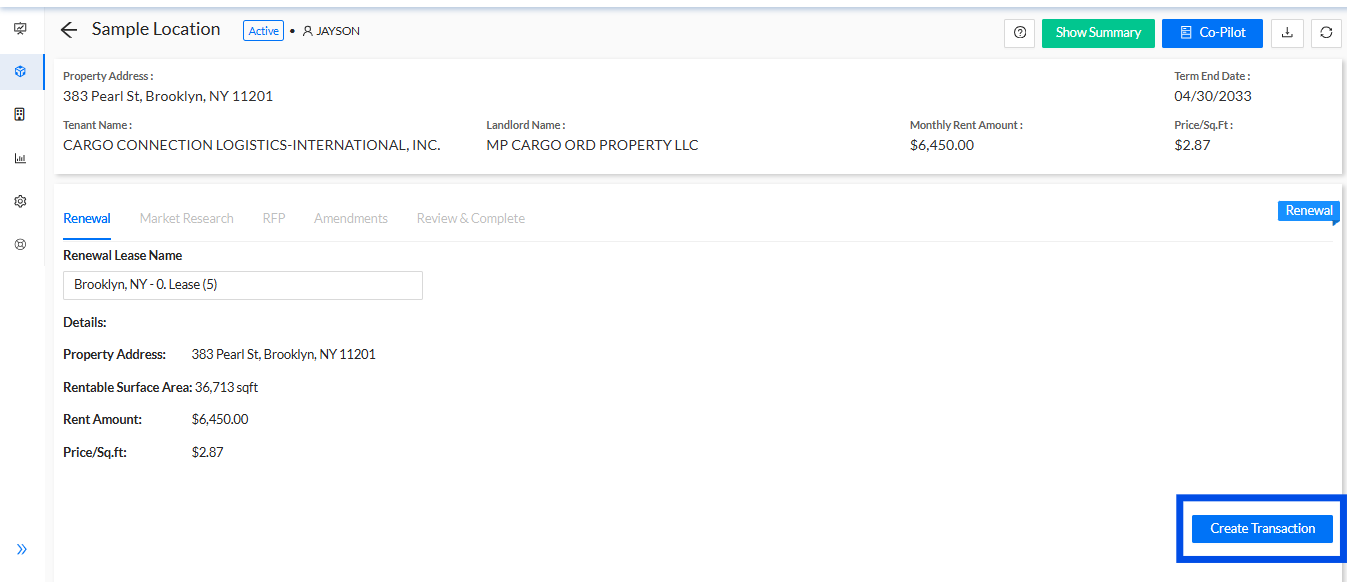
2. Editing Renewal Lease Name: Under the Renewal tab, you can edit the renewal lease name as needed. The details derived from the original lease will be displayed. Once the renaming is complete, click the Create Transaction button.
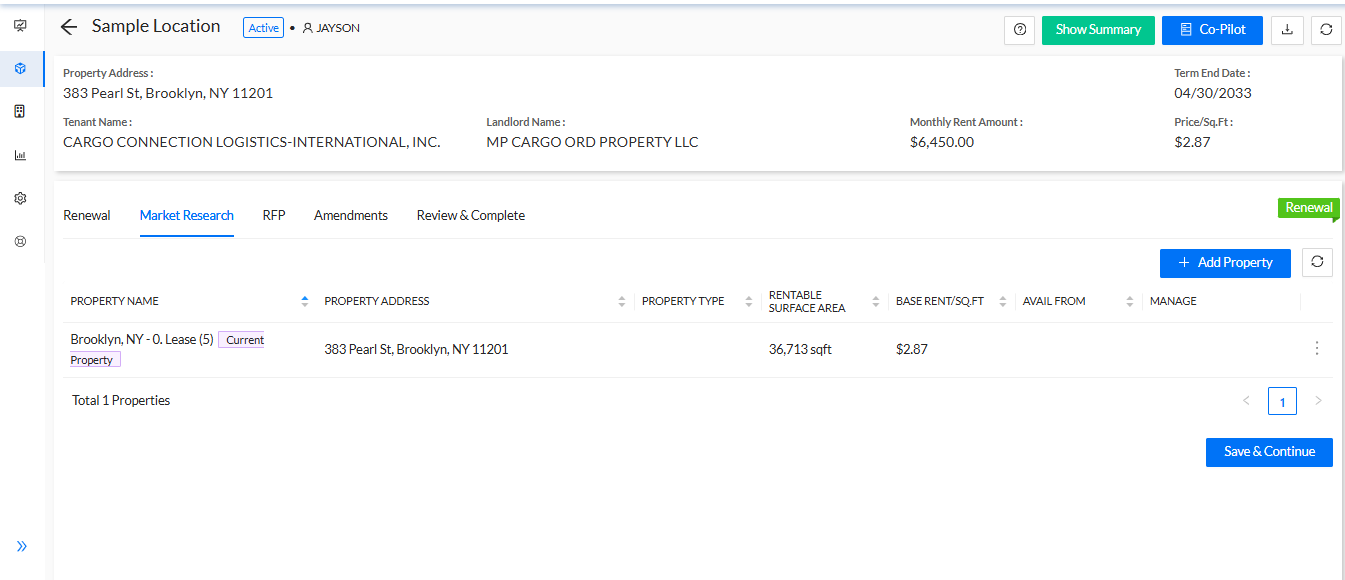
3. Market Research for Lease Comparison:
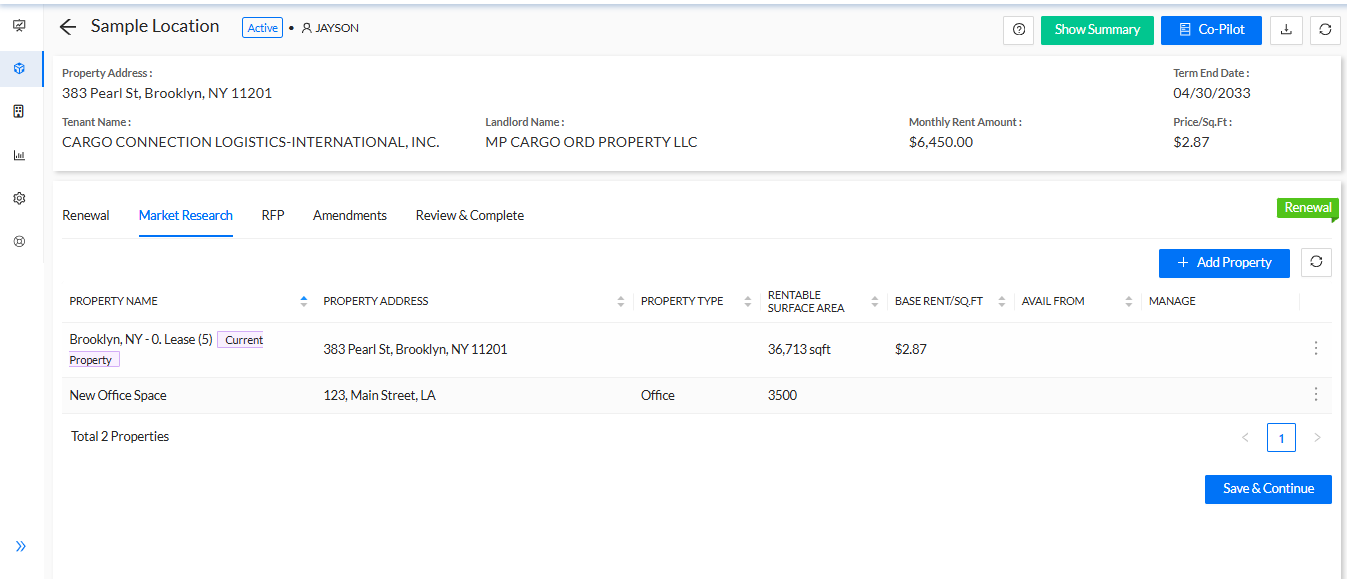
In this step, conduct market research by comparing the current property with others. After completing the market research and analysis.
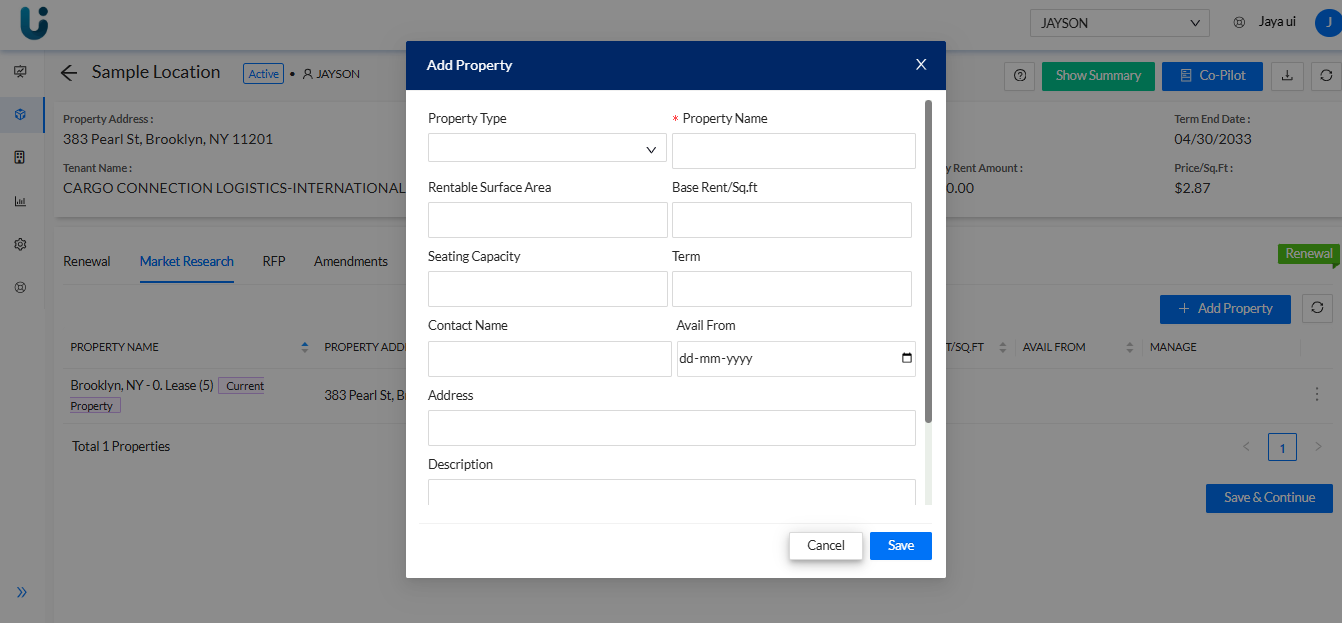
4. Add various properties for comparison based on parameters such as rentable surface area, base rent per square foot, and the availability date.
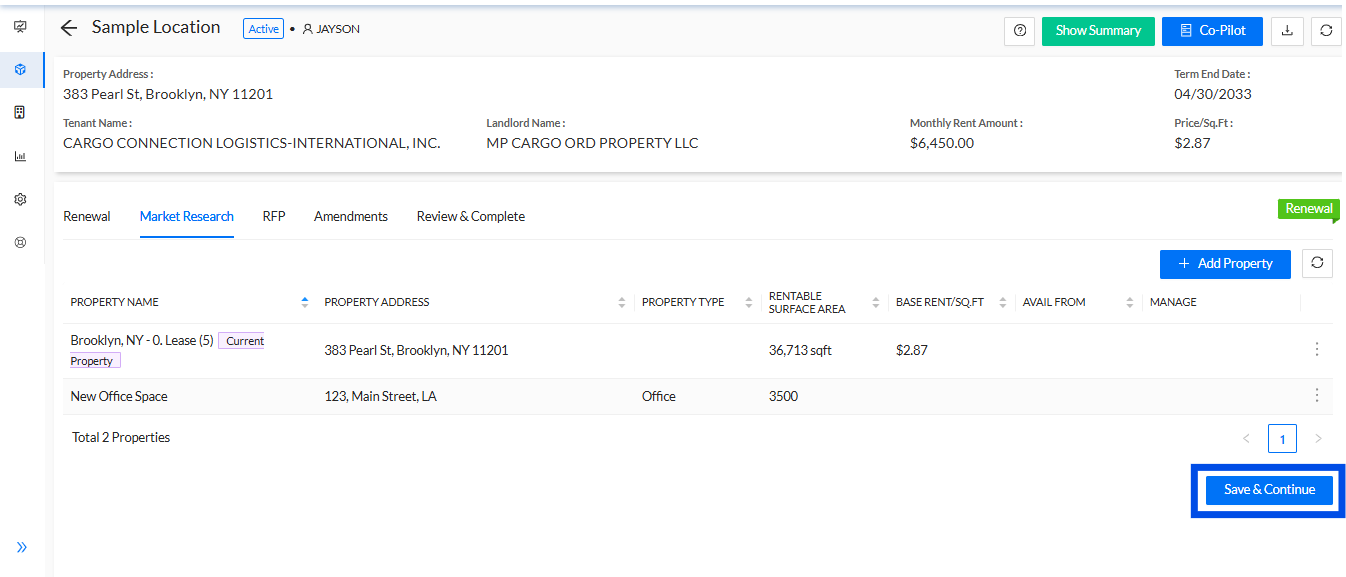
5. Click Save and Continue to proceed to the next step.
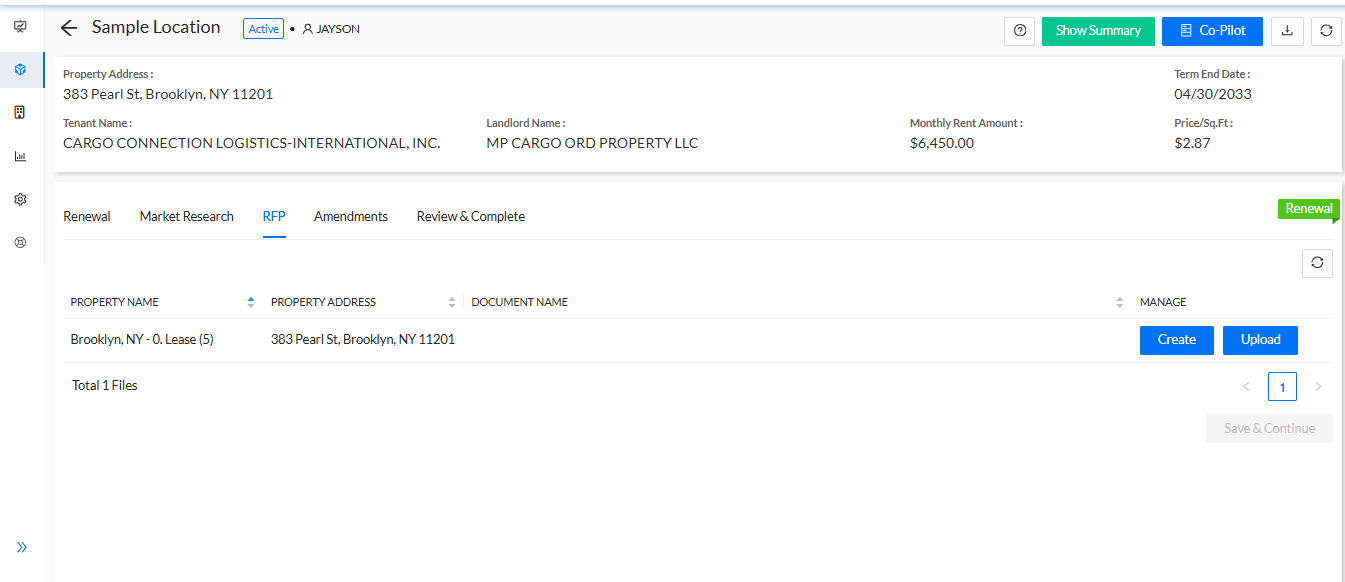
6. Request for Proposal (RFP): At this point, you can either create a new RFP or upload an existing RFP document from your system.
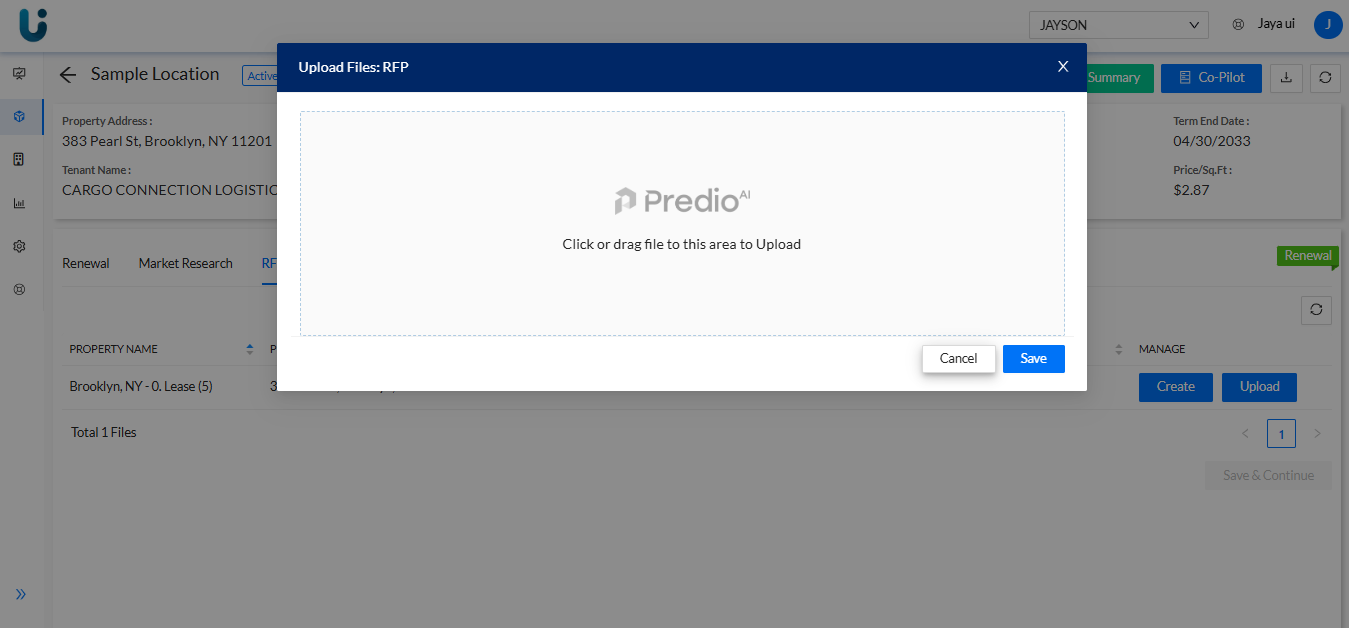
7. Uploading RFP Documents: To upload RFP documents, click the Upload button.
8. Creating a New RFP: If you need to create a new RFP, click the Create button, which will direct you to an editing page.
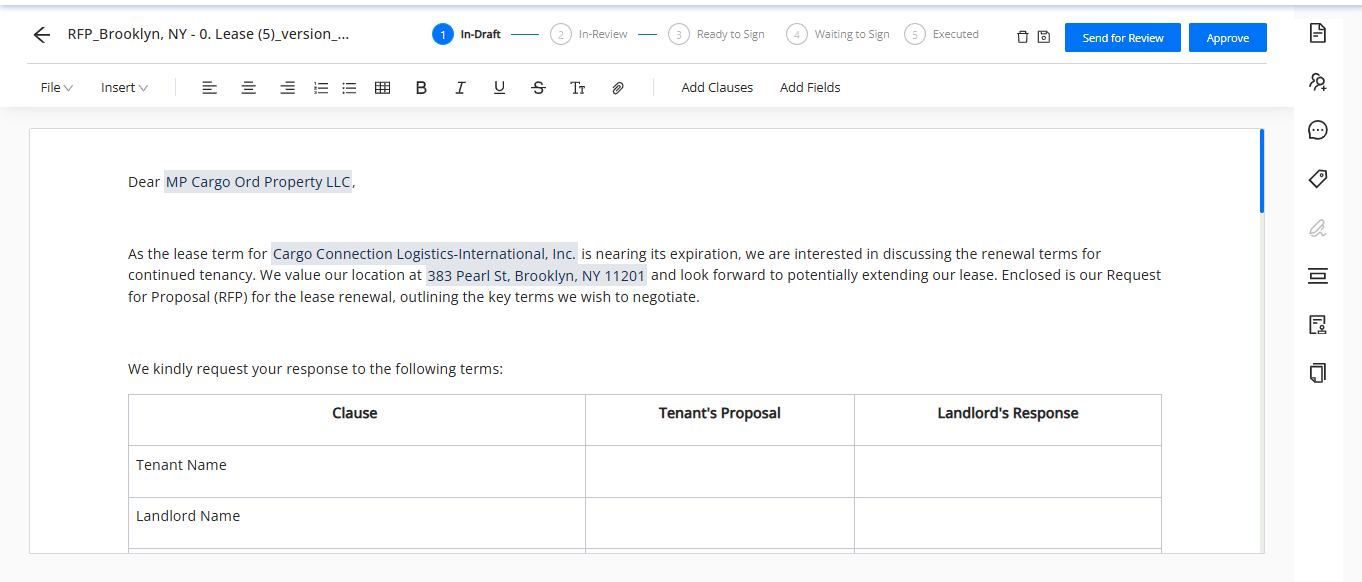
9. Modifying and Approving the RFP: Modify the RFP template by adding the necessary details. Once the document is finalized, you can either send it for review to other team members or approve it directly by clicking the Approve button.
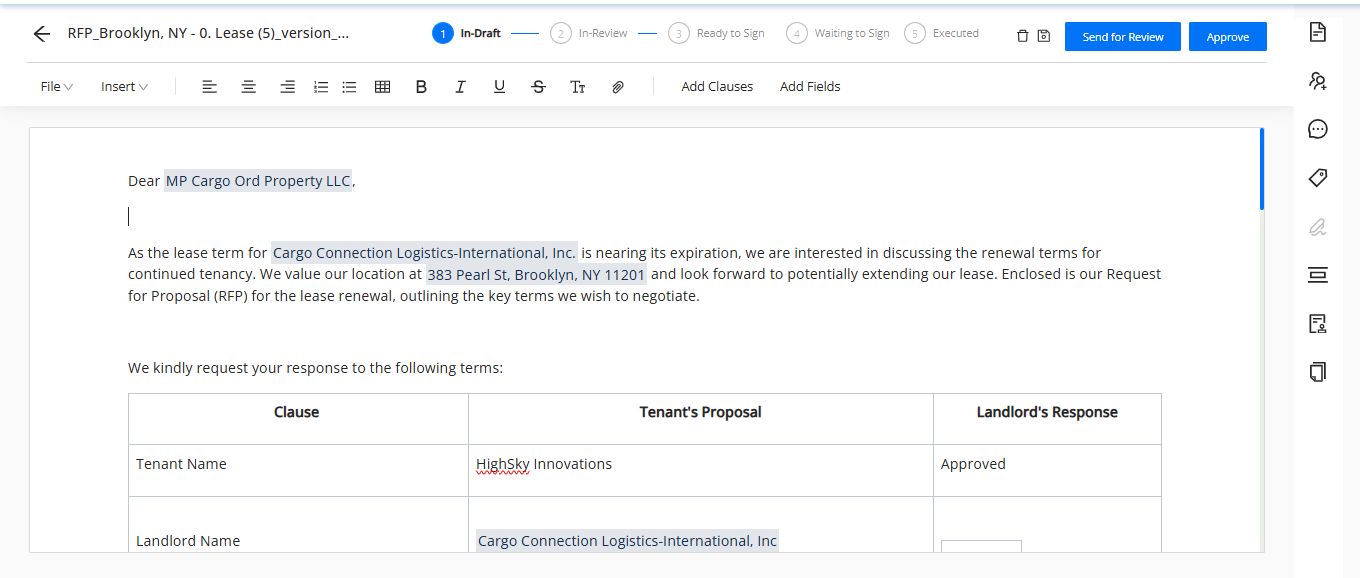
10. Document Approval and Readiness for Signature: Once the RFP document is approved, it is ready for the signature process.
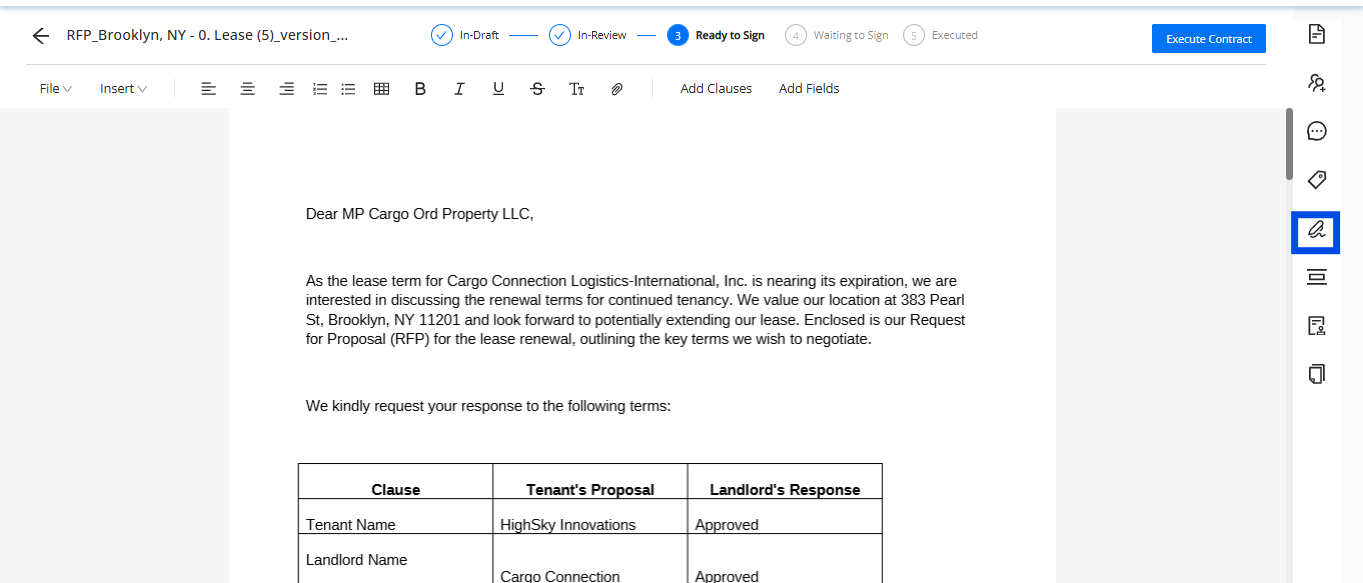
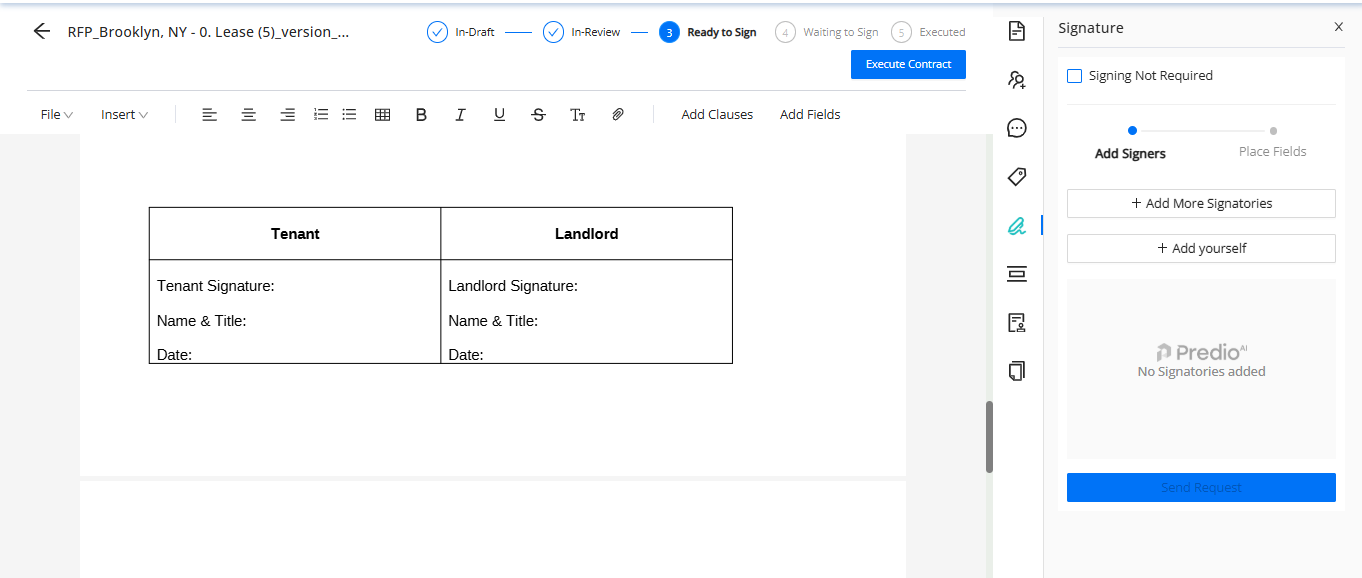
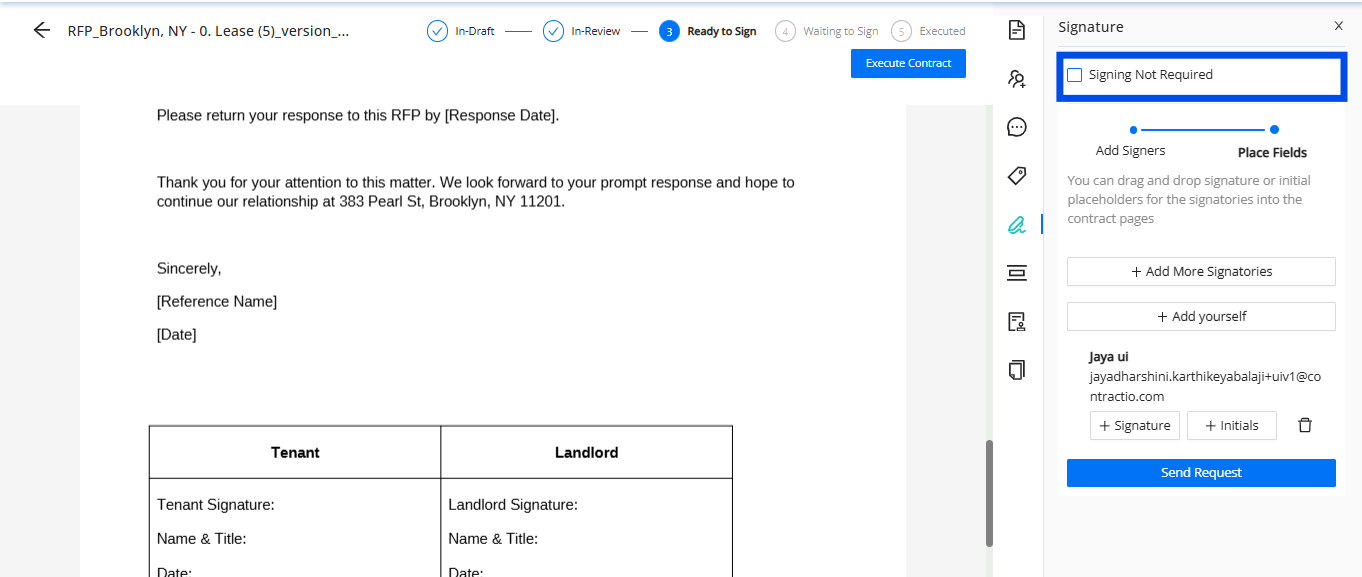
11. Adding Signatures: You may add additional signatures or your own signature.
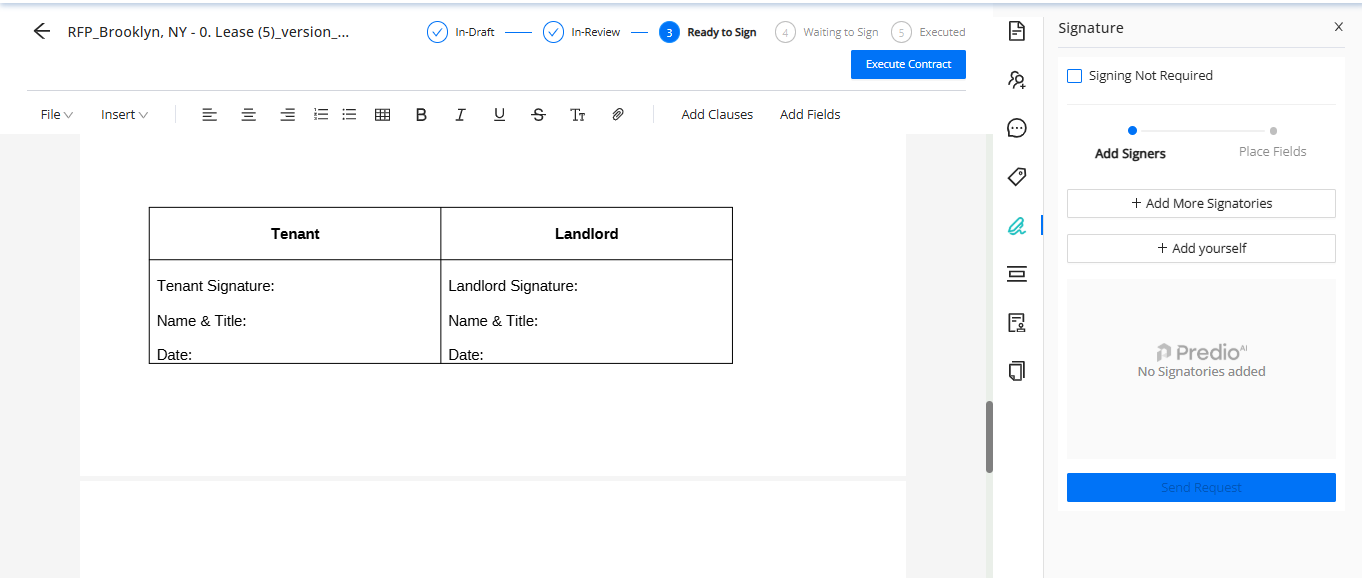
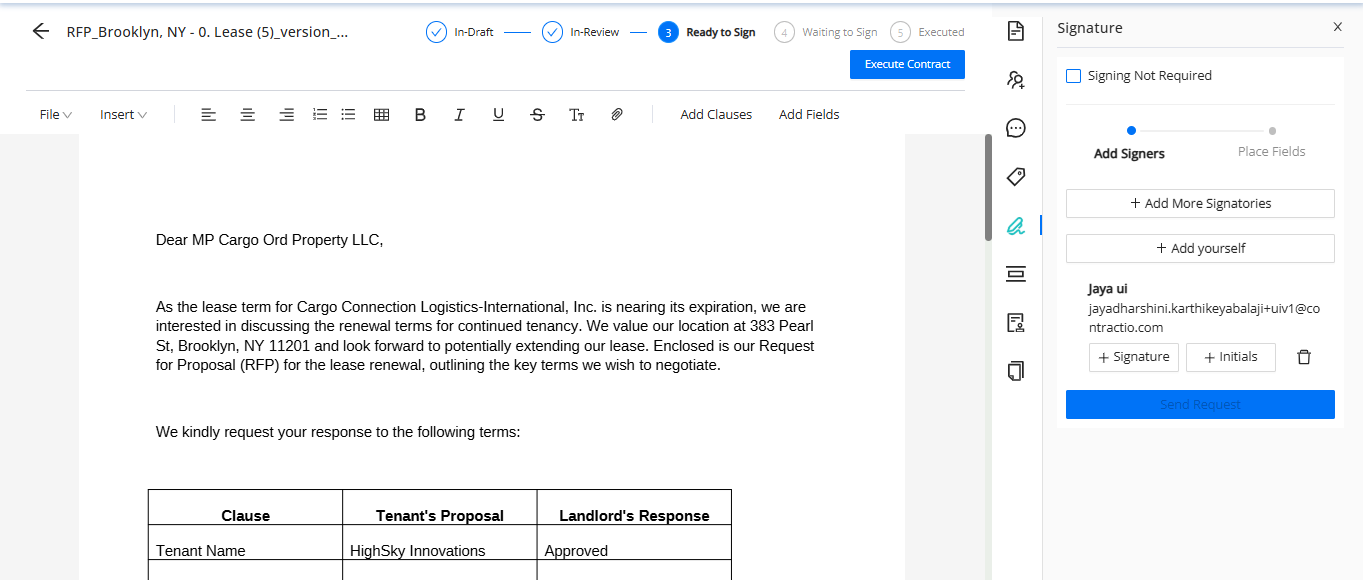
12. To add more signatures, click Add More Signatures. A pop-up window will appear where you can input the required details.
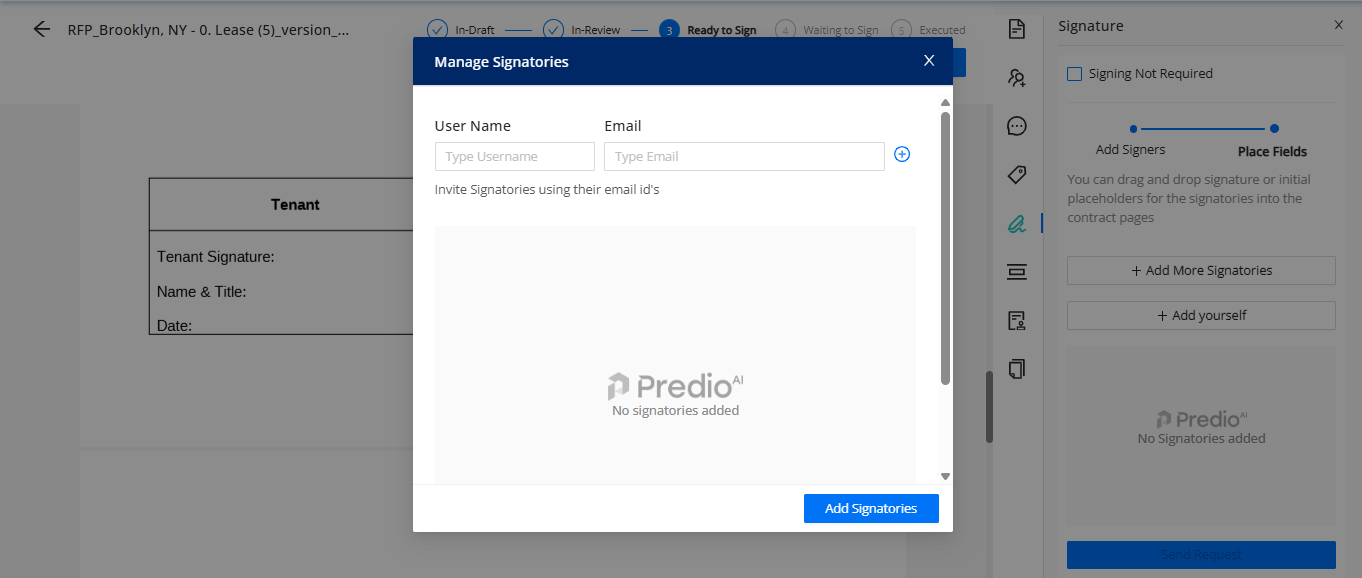
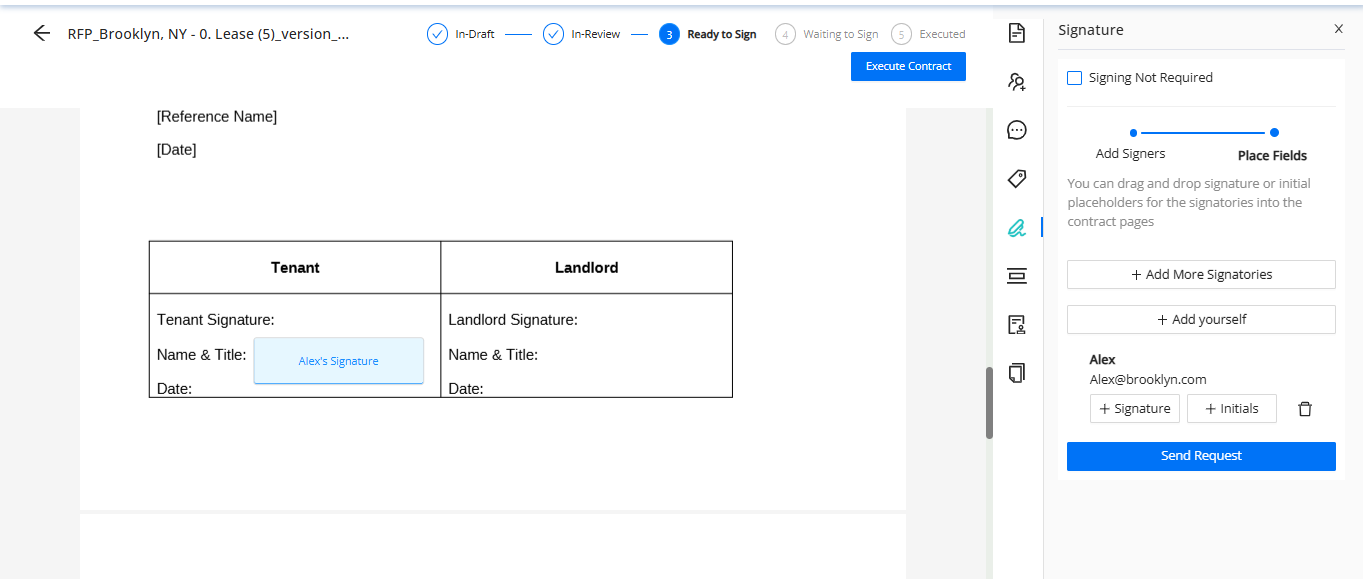
13. Signature Details: The signature details will be listed, allowing you to drag and drop the signature button to the appropriate location in the document.
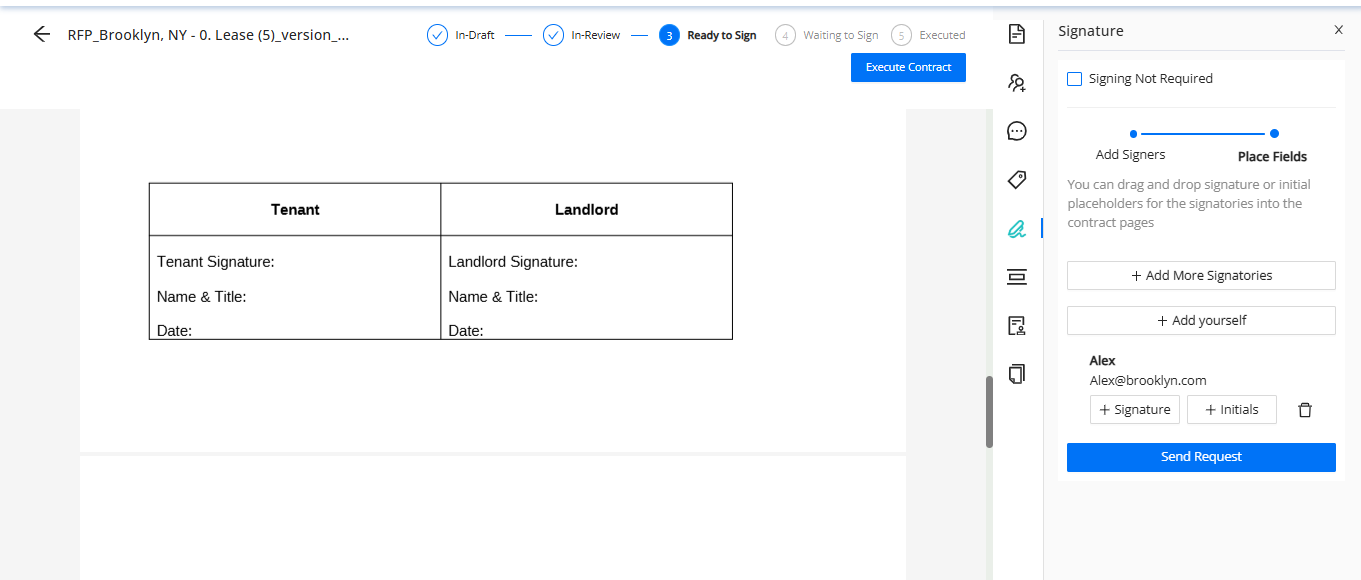
14. Sending Signature Request: Once the signature placement is set, click the Send Request button to initiate the review process.
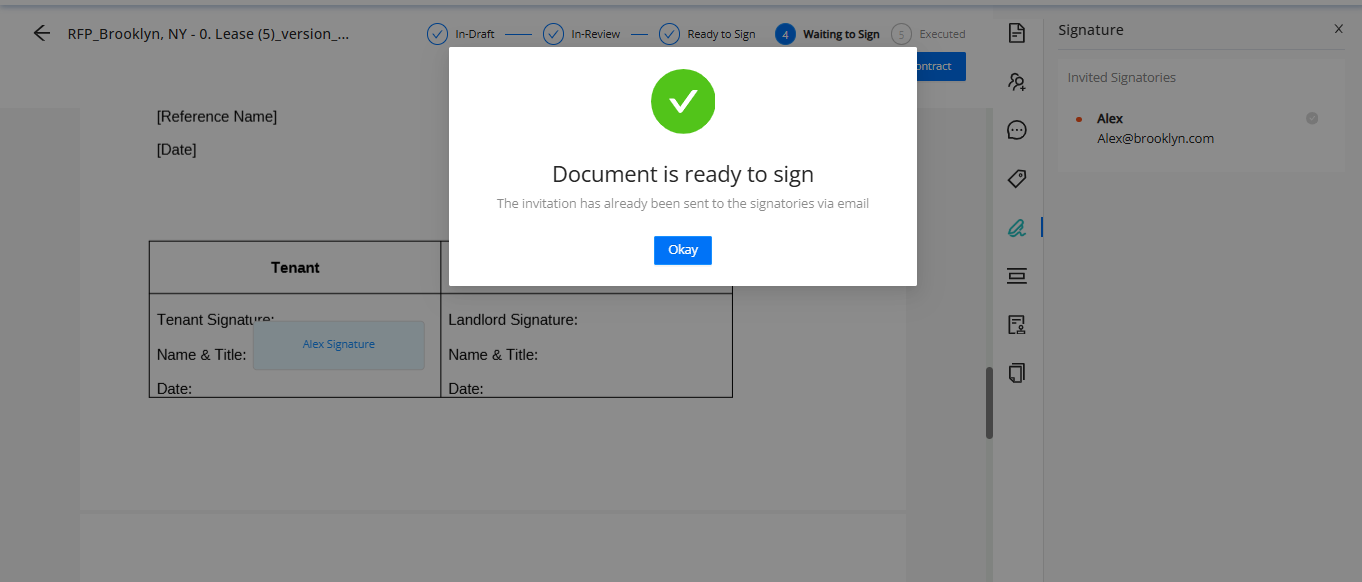
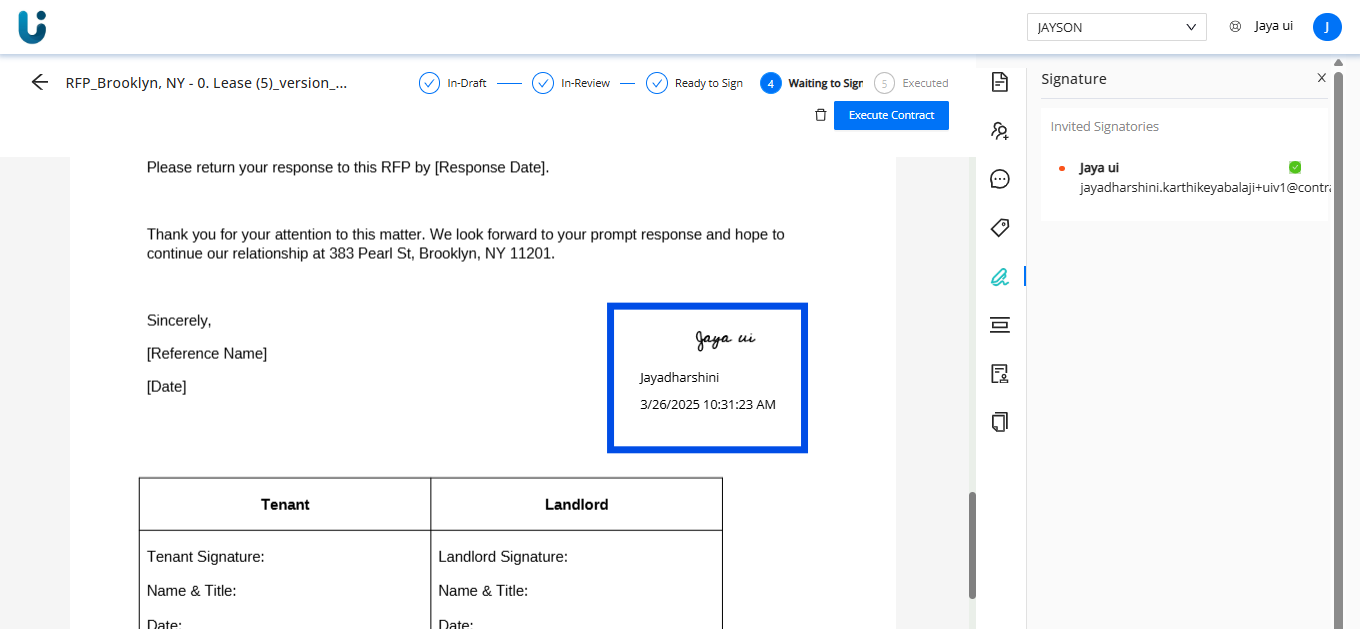
15. Signature Review and Confirmation: The provided email address will receive an invitation for review. Once reviewed, the signature will be added to the document.
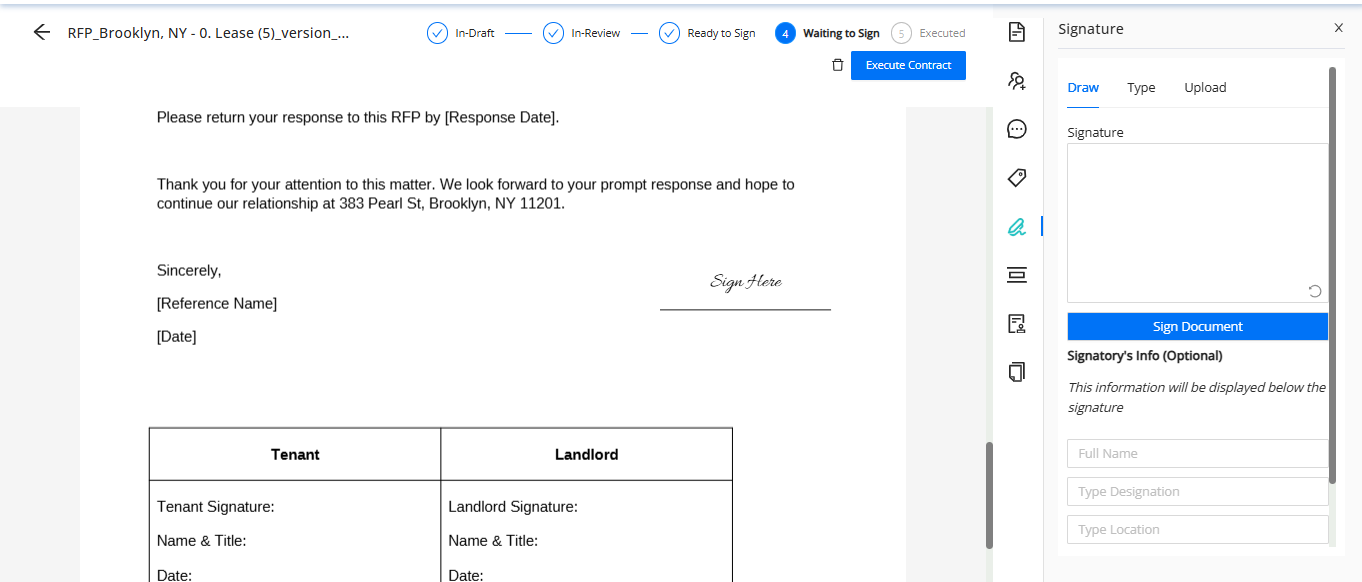
16. Adding Your Own Signature: If you prefer to add your own signature, click Add Yourself.
17. You can customize details such as name, designation, location, and font for the signature or upload an image of your signature.
18. Signature via Email Review: Once sent for email review, the signature will be placed in the document at the designated location.
19. Opting Out of Signature: Alternatively, you can select the Signing Not Required option at the top of the signature section if no signature is needed.
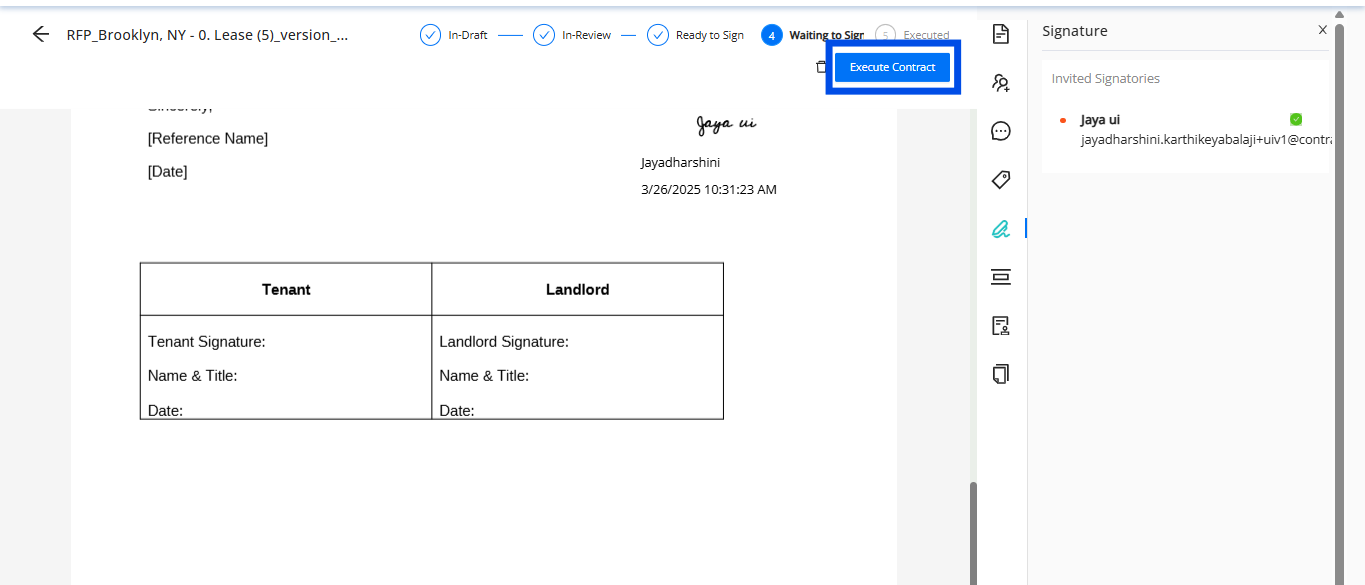
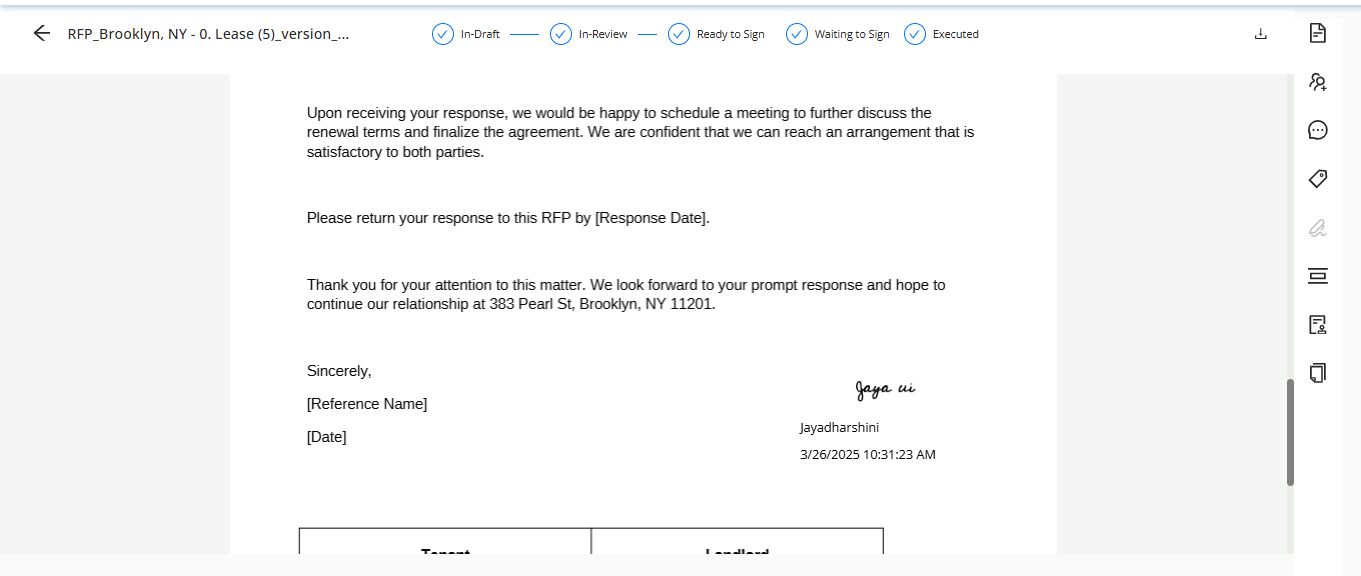
20. Executing the RFP: After completing the signature procedure, click the Execute button to finalize the RFP creation process.
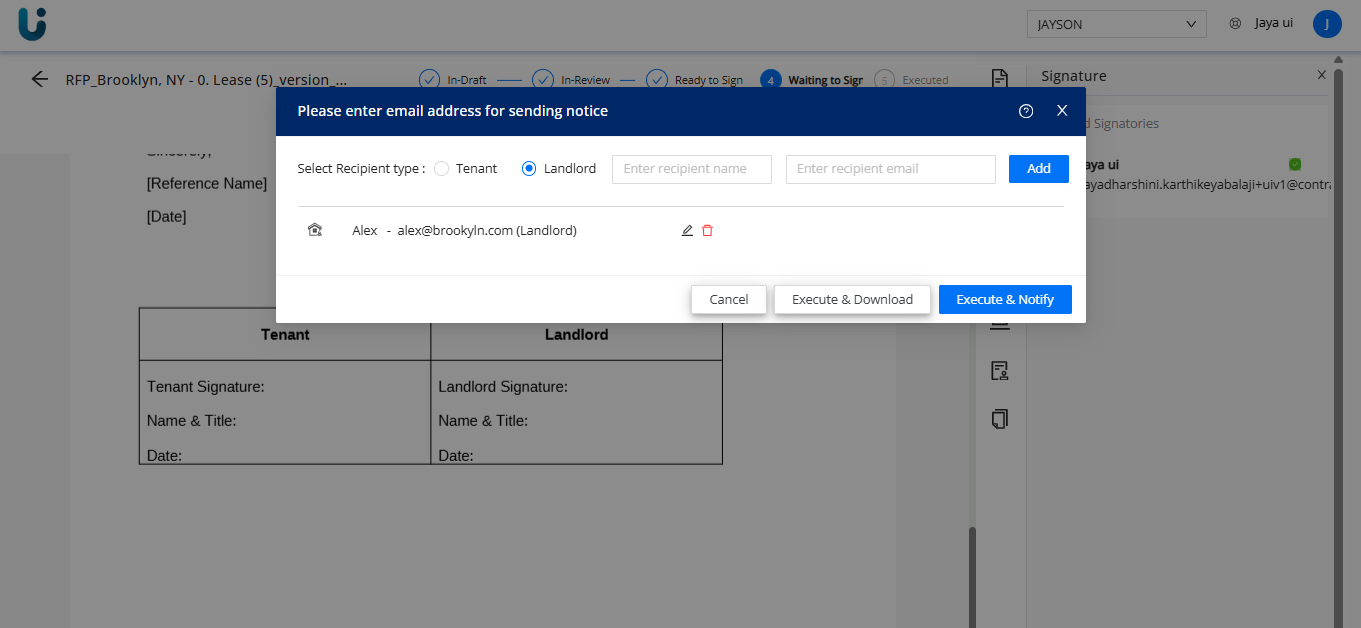
21. Adding Email Addresses for Notification: A pop-up will appear for you to add the email addresses of the landlord or tenant to notify them of the RFP.
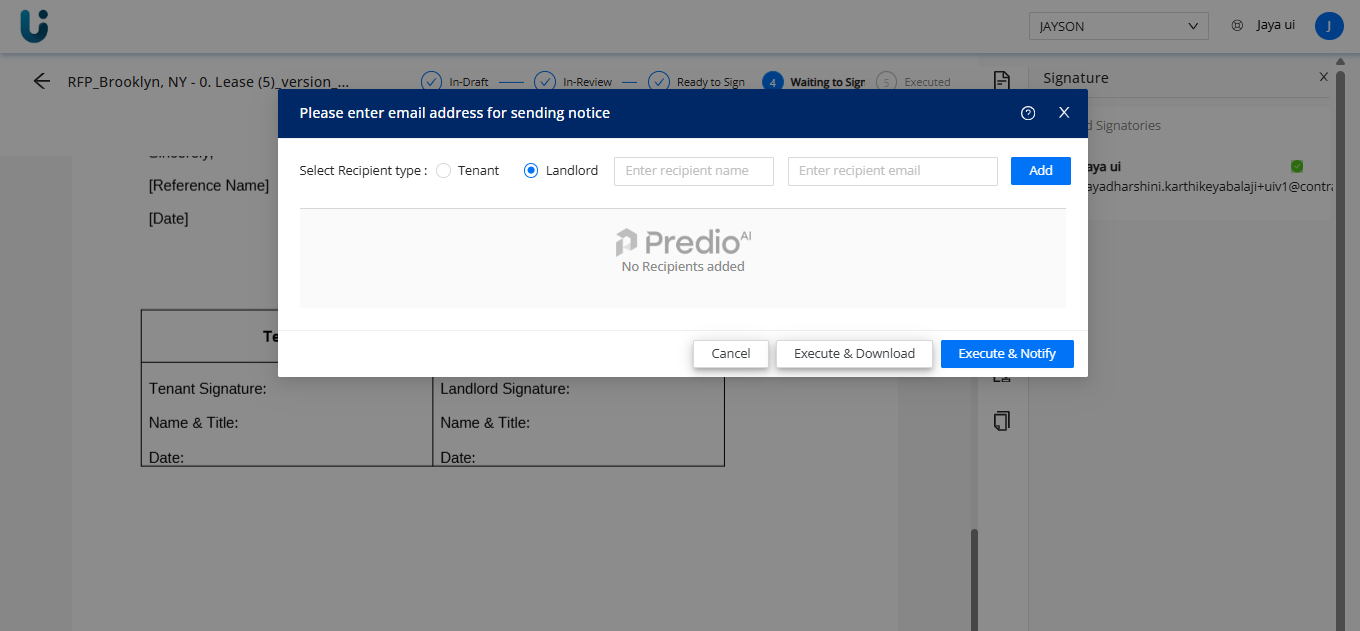
22. Execute and Notify: Once the email addresses have been added, click Execute & Notify to complete the process.
23. RFP PDF Download: The RFP is successfully executed, and a PDF copy will automatically be downloaded to your system.
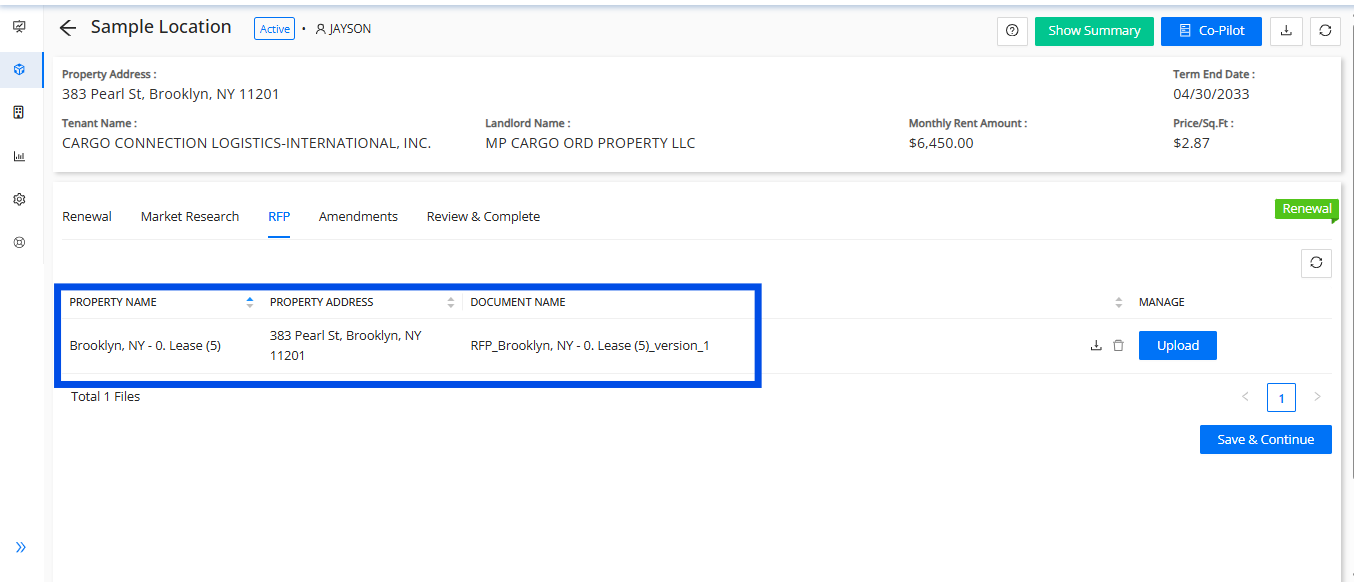
24. Access the RFP Tab: Navigate back to the RFP tab under transaction management, where you will find the created RFP. Click Save and Continue for further processing.
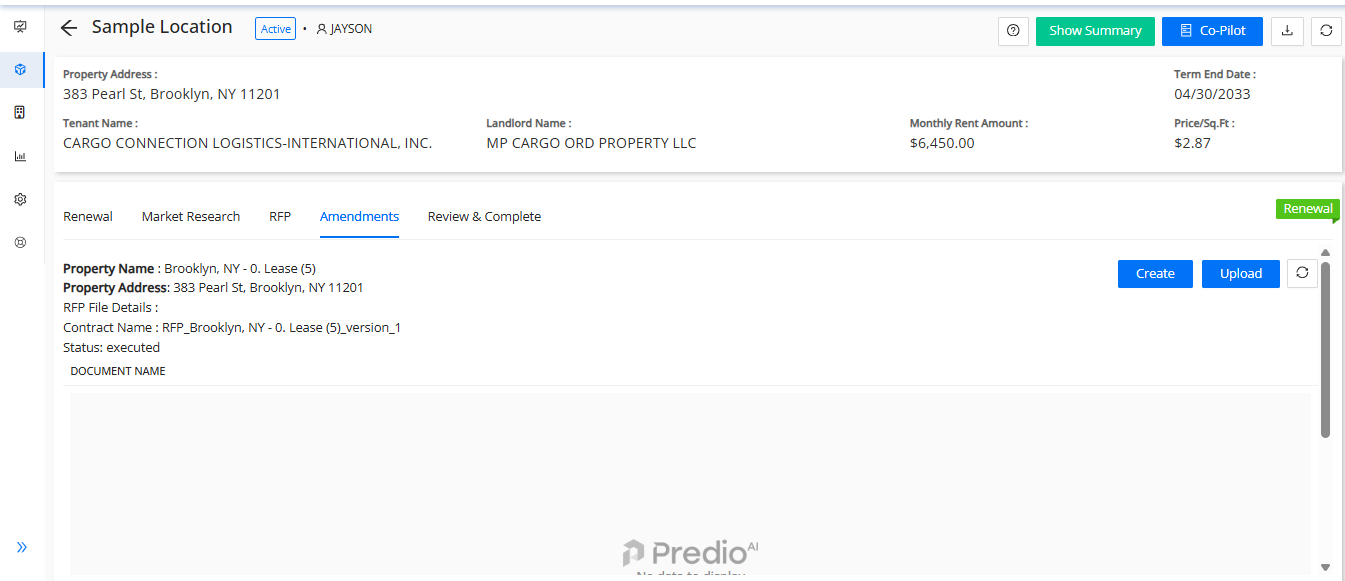
25. Amendments Tab: In the Amendments tab, you have the option to either create a new amendment or upload an existing amendment.
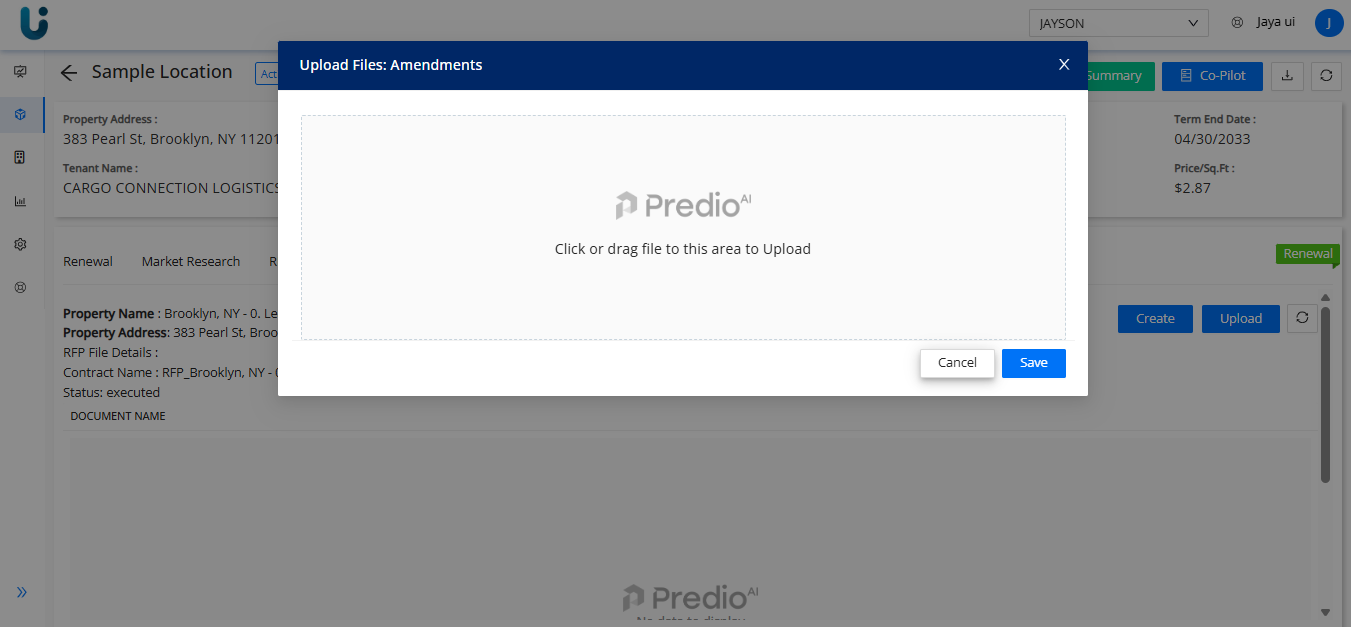
26. Uploading an Amendment: Click the Upload button to upload amendment documents from your system.
27. Creating an Amendment: Alternatively, you can click the Create Amendment button to initiate the creation of an amendment from scratch.
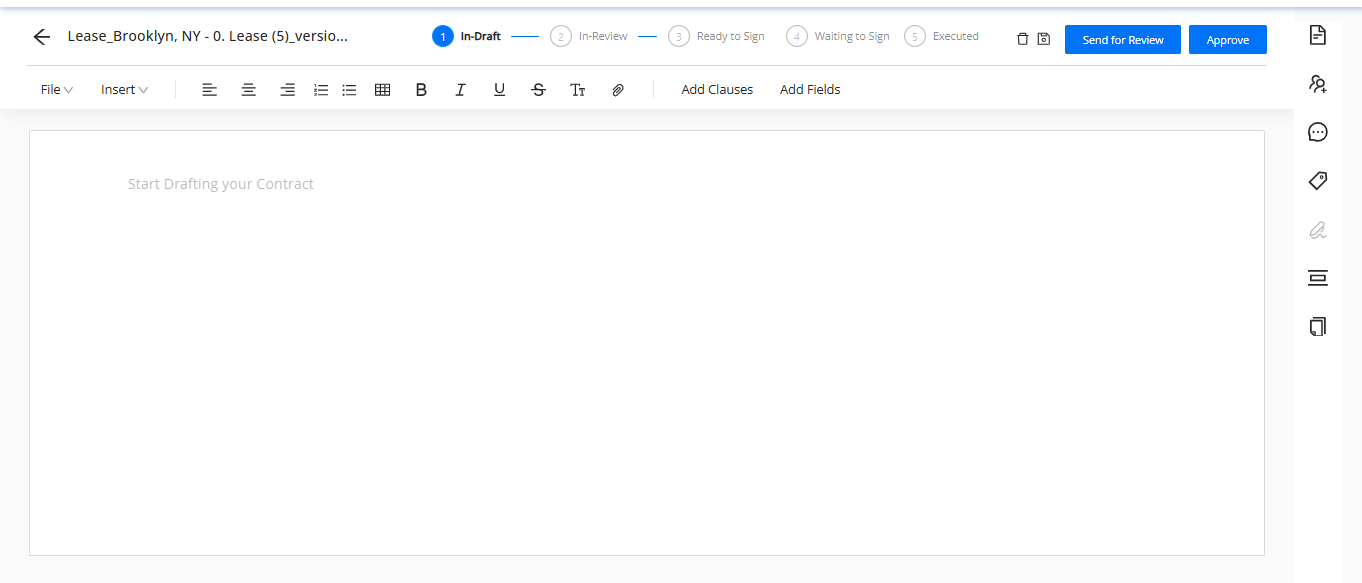
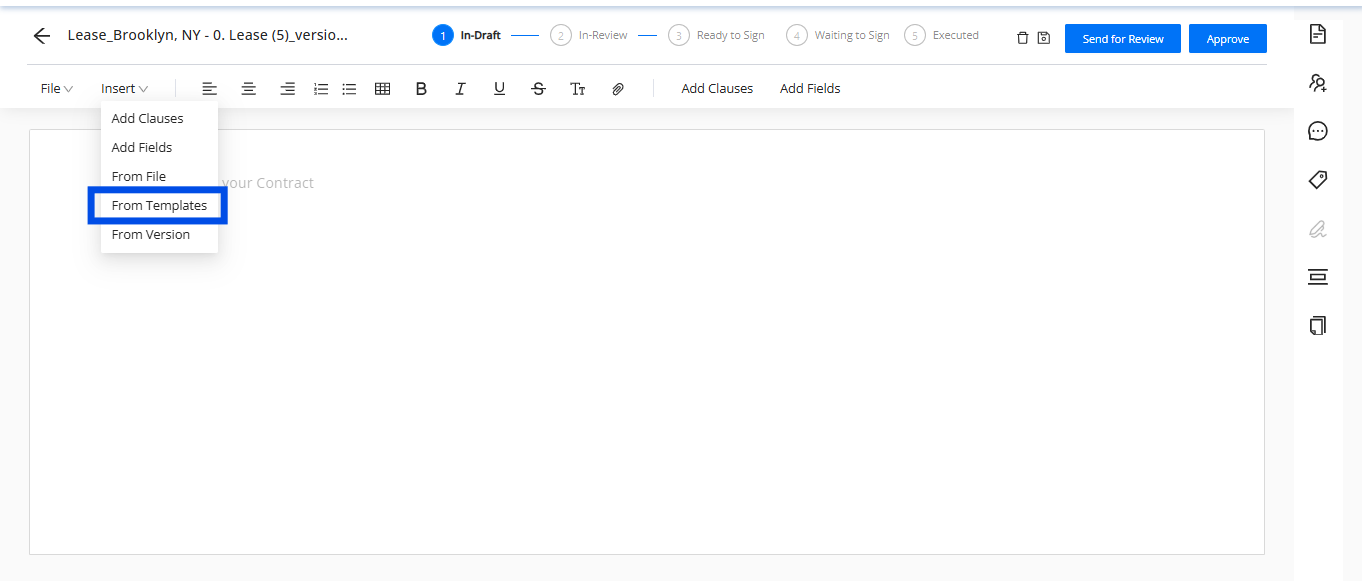
28. Inserting Amendment Templates: Use amendment templates to streamline the process of creating an amendment.
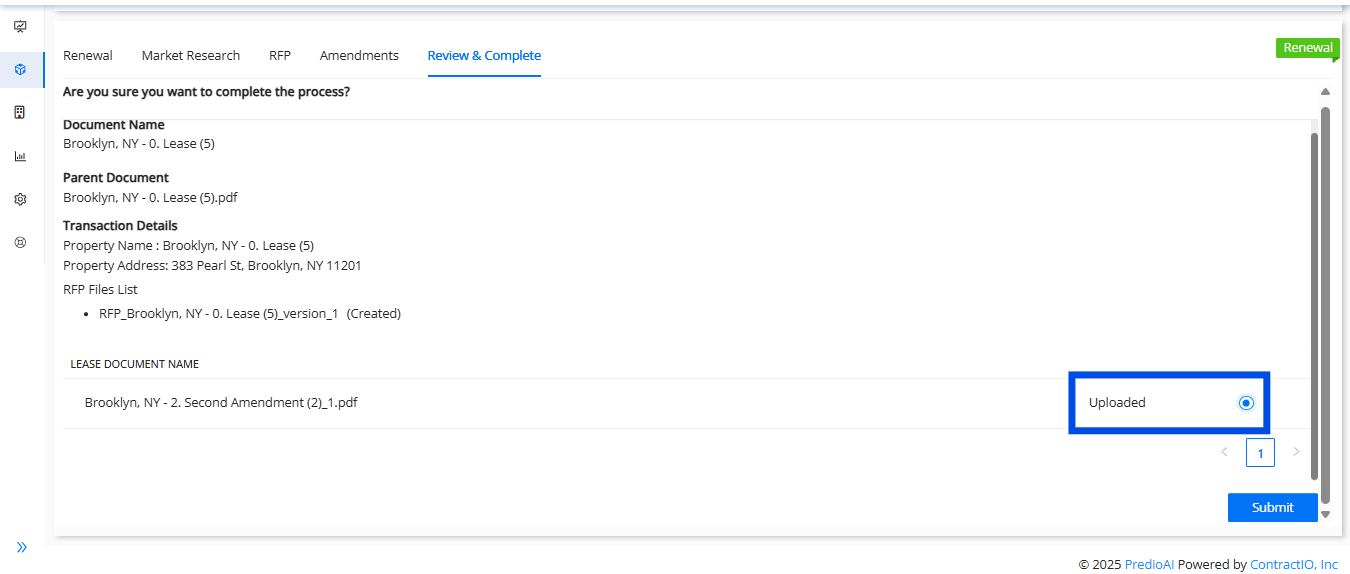
29. Submitting Lease Documents: The amendment will be listed under the Lease Documents section in the Review and Complete tab.
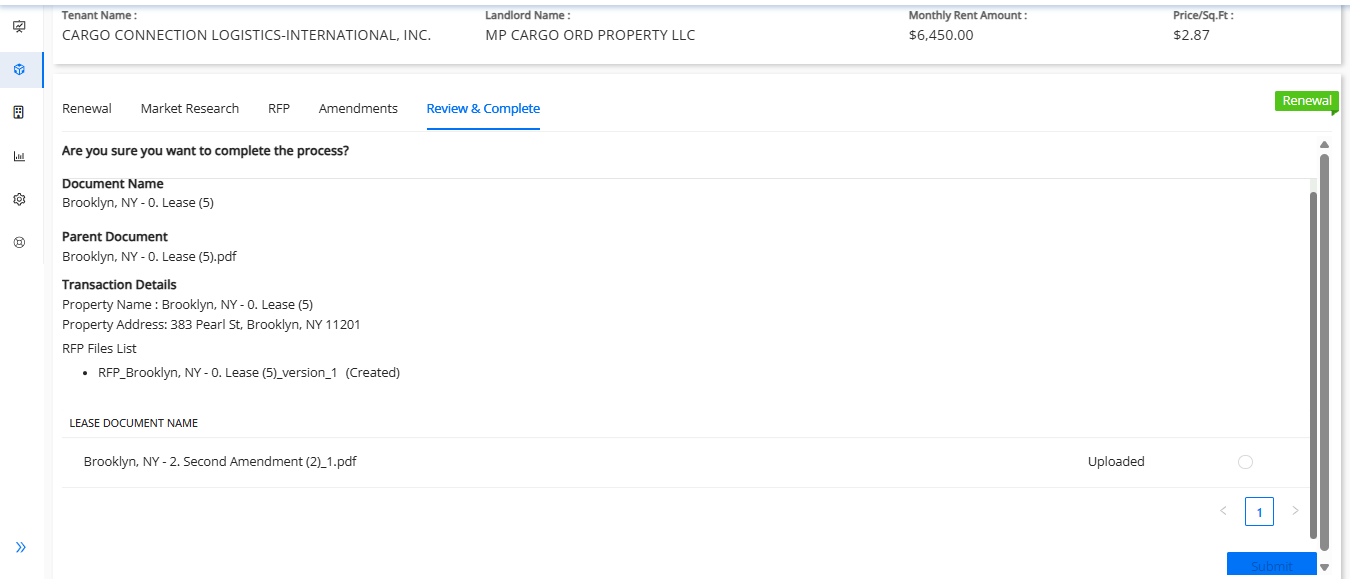
30. Select the required documents and submit them for processing.
31. Proceed to Co-Pilot Mode for the property.
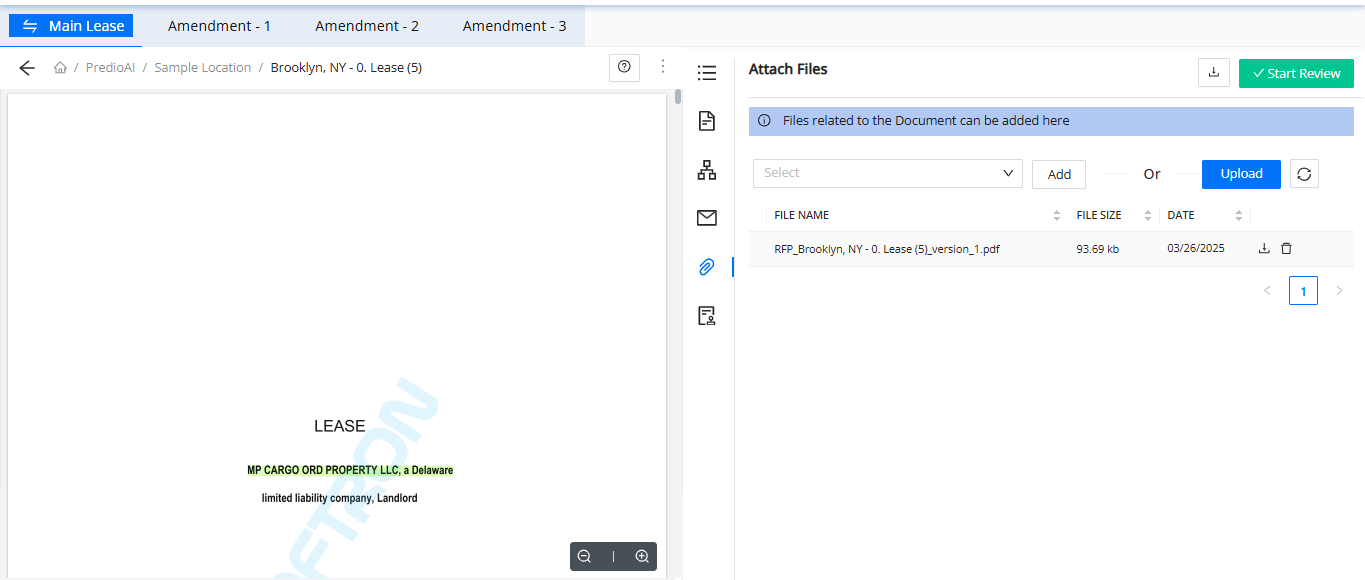
31. Under the Attach File section in Co-Pilot Mode, you will find the created RFP document.
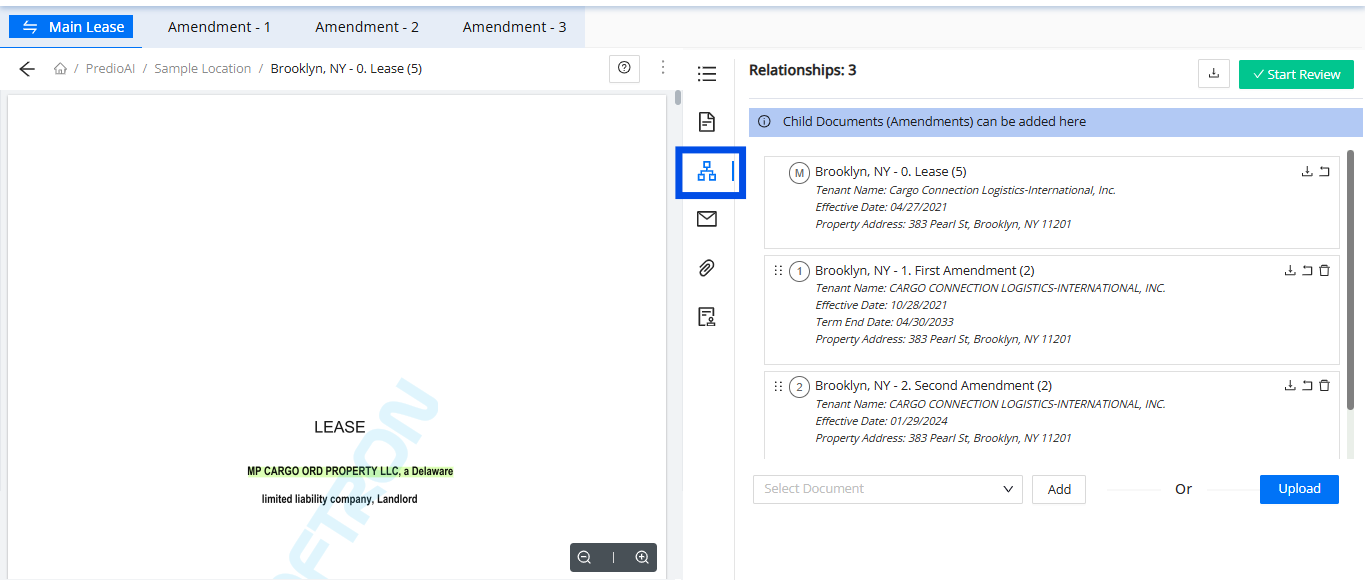
32. In the Relationship Tab, you will find the added amendment for reference and further action.
Was this article helpful?
That’s Great!
Thank you for your feedback
Sorry! We couldn't be helpful
Thank you for your feedback
Feedback sent
We appreciate your effort and will try to fix the article