Creating a client user allows you to grant specific individuals access to a particular client’s data and manage permissions within the PredioAI platform. Whether you’re adding new team members or external partners, this functionality ensures that everyone who needs access to a client’s information can be properly onboarded. This process is straightforward and ensures that the user is set up with the necessary permissions and login credentials.
Steps to Create a Client User
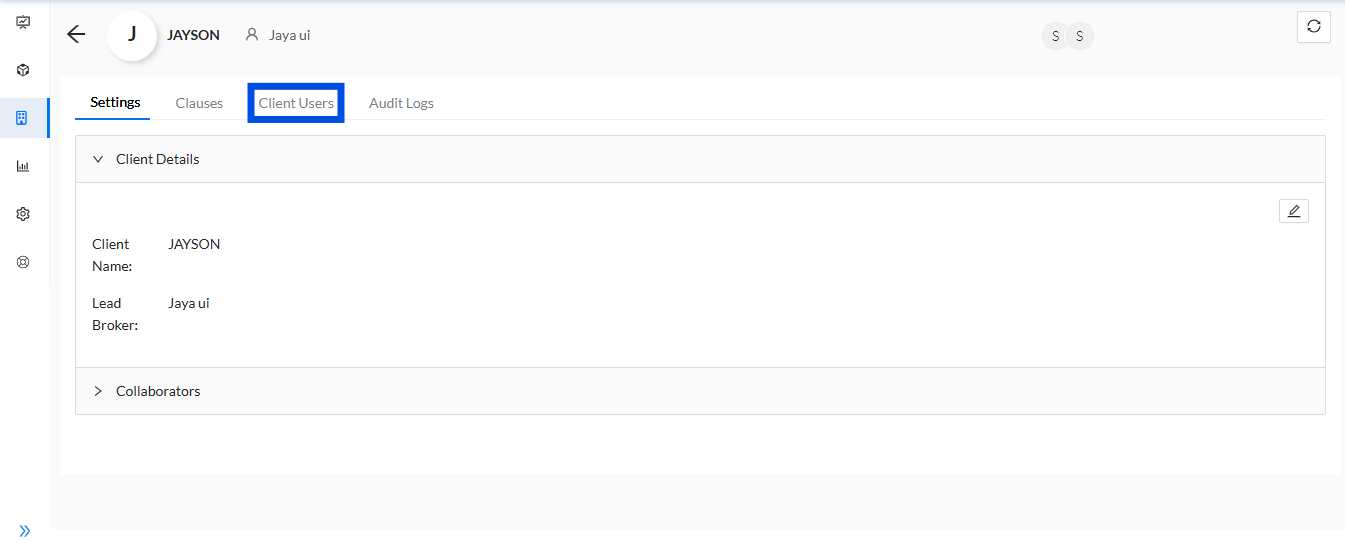
Navigate to the "Client Users" Tab
From the Client Page, go to the Client Users tab. This section allows you to manage all users associated with the client, whether they need full access or limited permissions.
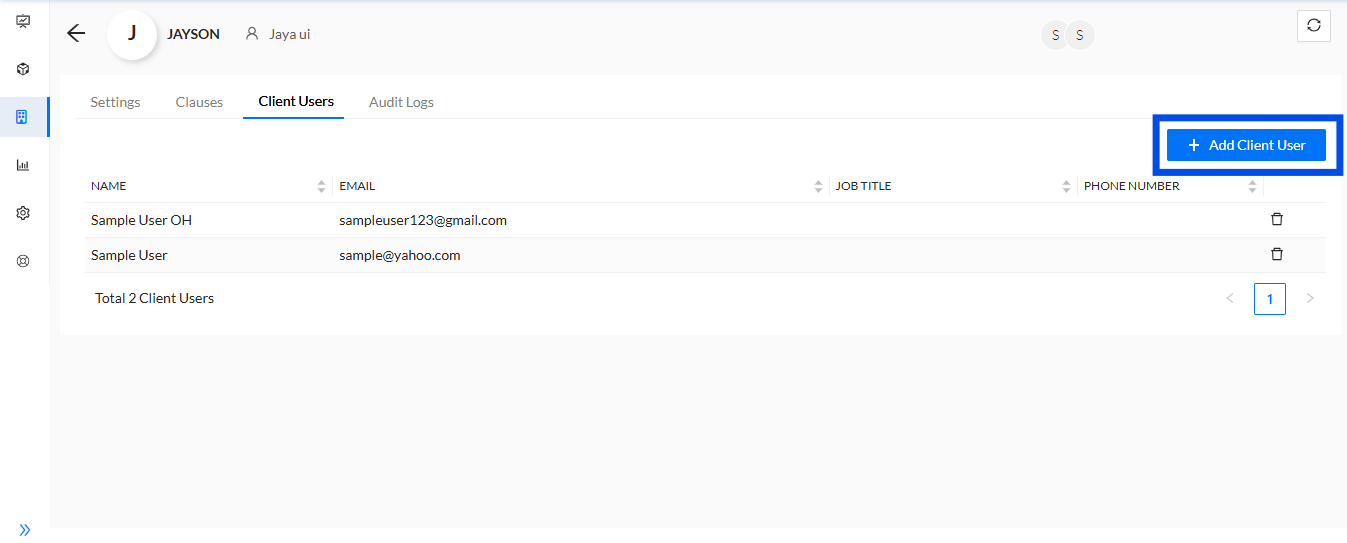
Click the "Add Client User" Button
To add a new user, click on the Add Client User button. This action will open a pop-up window where you can enter the new user’s details and configure their access.
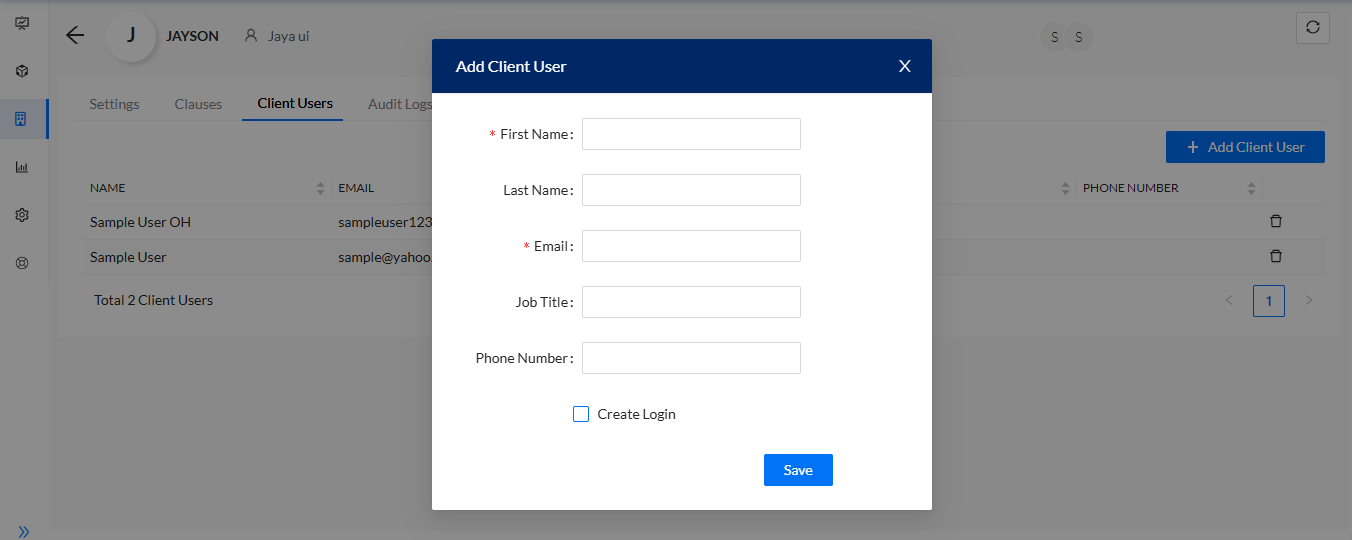
Fill in the Necessary Details
In the pop-up window, fill in the required fields for the new client user, such as their name, email address, role, and other relevant information. This helps ensure that the right user is set up with the correct permissions.
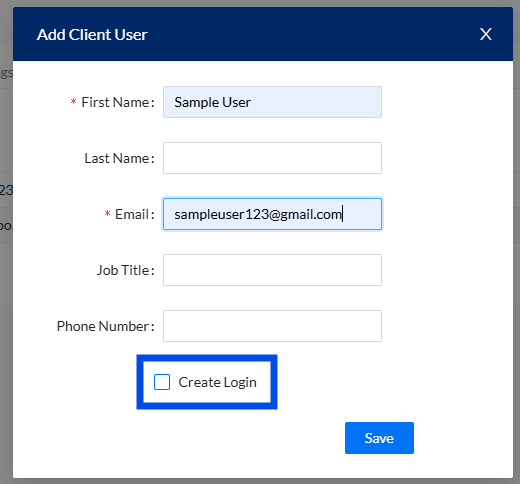
Select the "Create Login" Option
If the client user requires login access to the platform, select the Create Login button. This will enable the user to log in to the platform and interact with the client's data. If login access is not needed, simply skip this step.
Click Save to Create the Client User
After entering all the necessary details, click on the Save button to create the new client user. Once saved, the user will be added to the system and listed in the Client Users section.
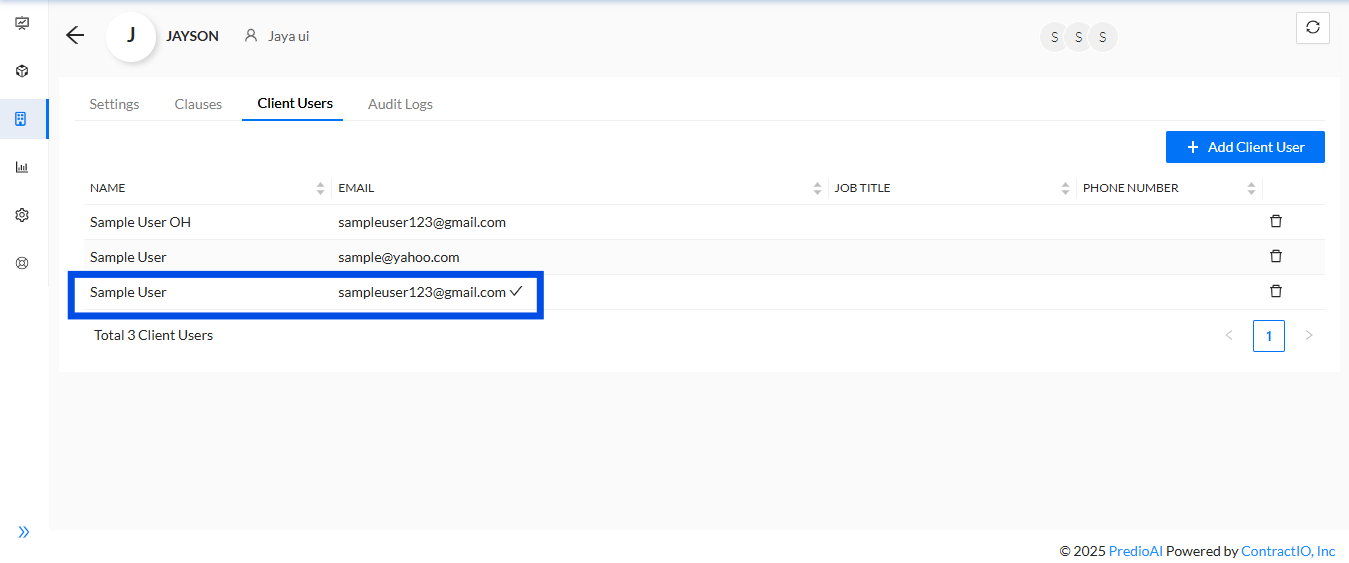
View the Newly Added Client User
The newly created client user will appear in the list of users. A tick mark next to their name will indicate that a User Login has been successfully created, granting them access to the platform.
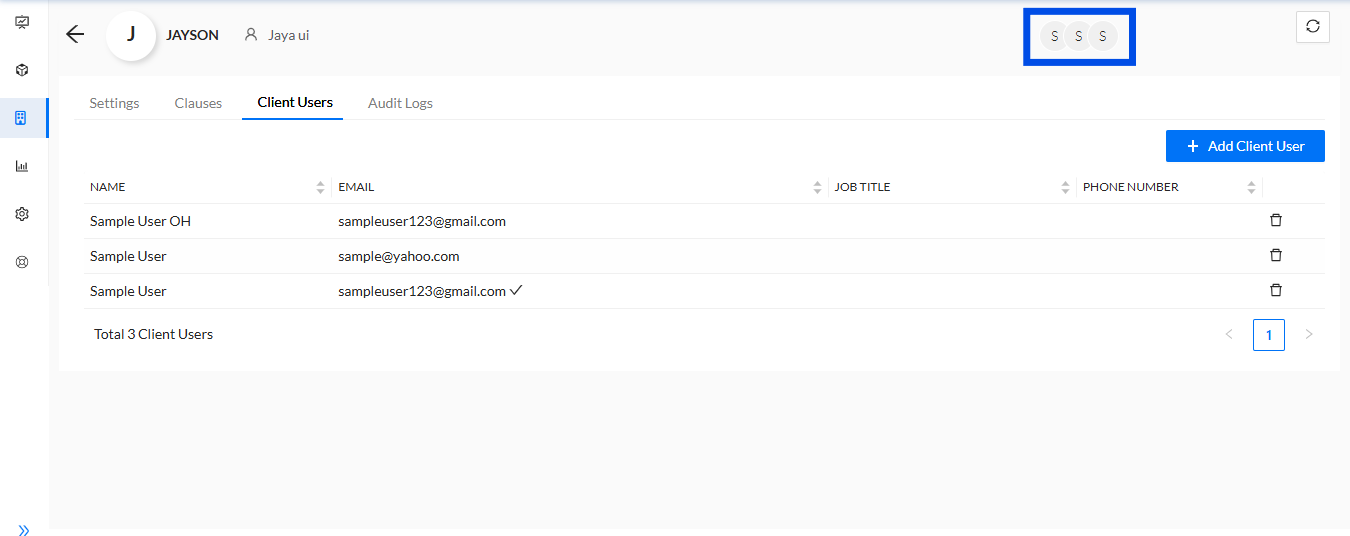
Client User Avatars Are Updated
When a new client user is added, the Client User section will also update with the new user’s avatar (if available). This provides a visual representation of all active users associated with the client.
What’s Next?
Once a client user is created, they will have access to the client’s data based on the permissions granted. You can further manage their access, update their details, or remove them from the system as needed. The next step would be to assign roles or permissions specific to the client, ensuring that each user can access the right information.
Was this article helpful?
That’s Great!
Thank you for your feedback
Sorry! We couldn't be helpful
Thank you for your feedback
Feedback sent
We appreciate your effort and will try to fix the article