Creating a new client within the PredioAI platform is a straightforward process that allows you to manage and organize commercial real estate (CRE) data efficiently. This functionality is essential for users who want to begin working with a new client in the system. It involves entering client details, associating a lead broker, and uploading the client’s logo, allowing for proper tracking and access to their documents and reports.
Steps to Create a New Client
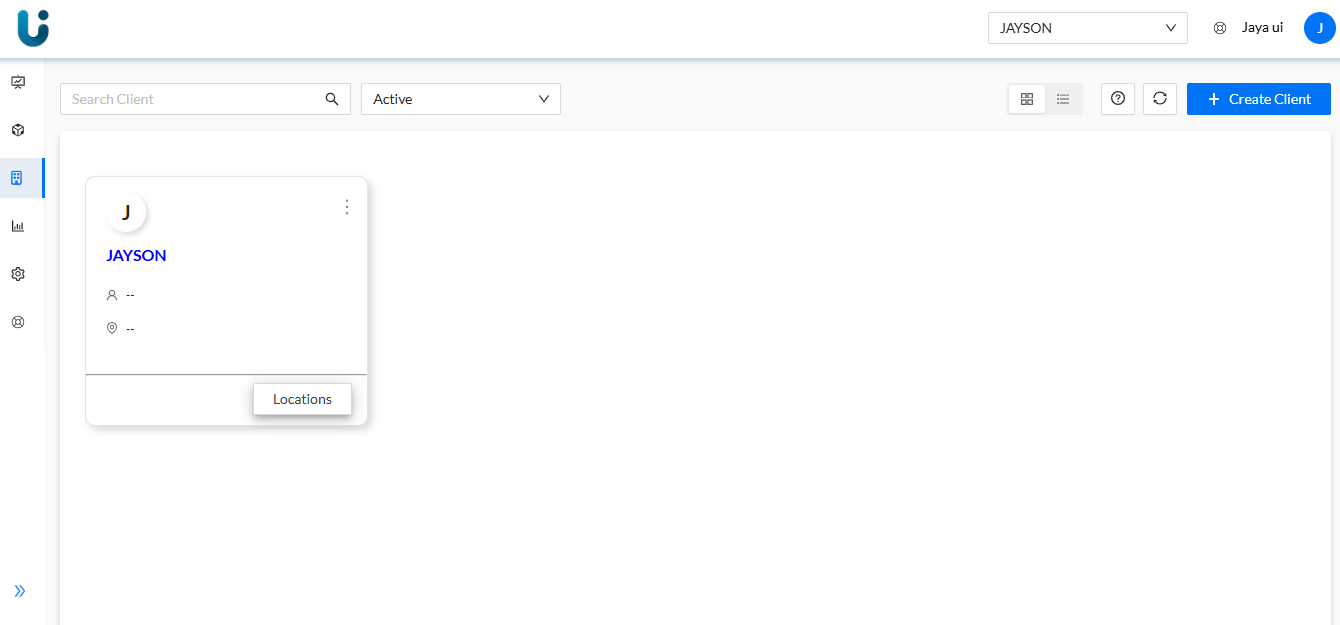
Navigate to the Client Dashboard
Start by logging into the platform and heading to the Client Dashboard. This is where you will manage all client-related information and view their data.
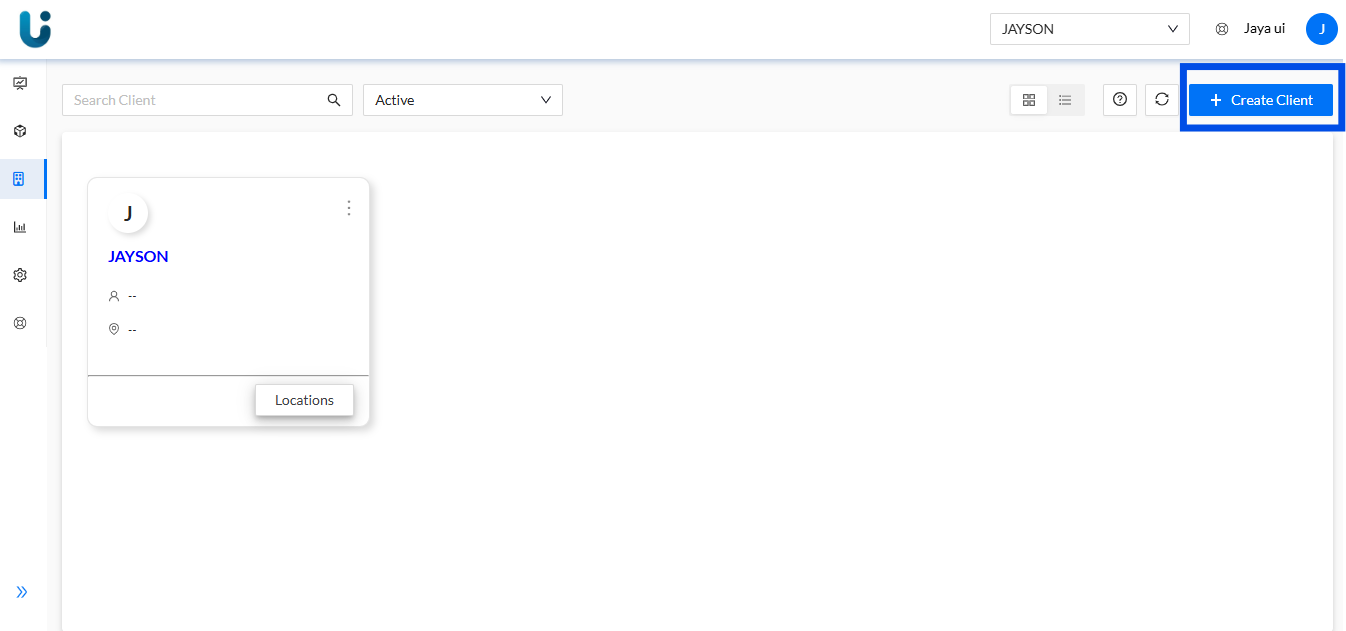
Click on the 'Create Client' Button
On the top right corner of the Client Dashboard, you will see the Create Client button. Click on it to initiate the client creation process.
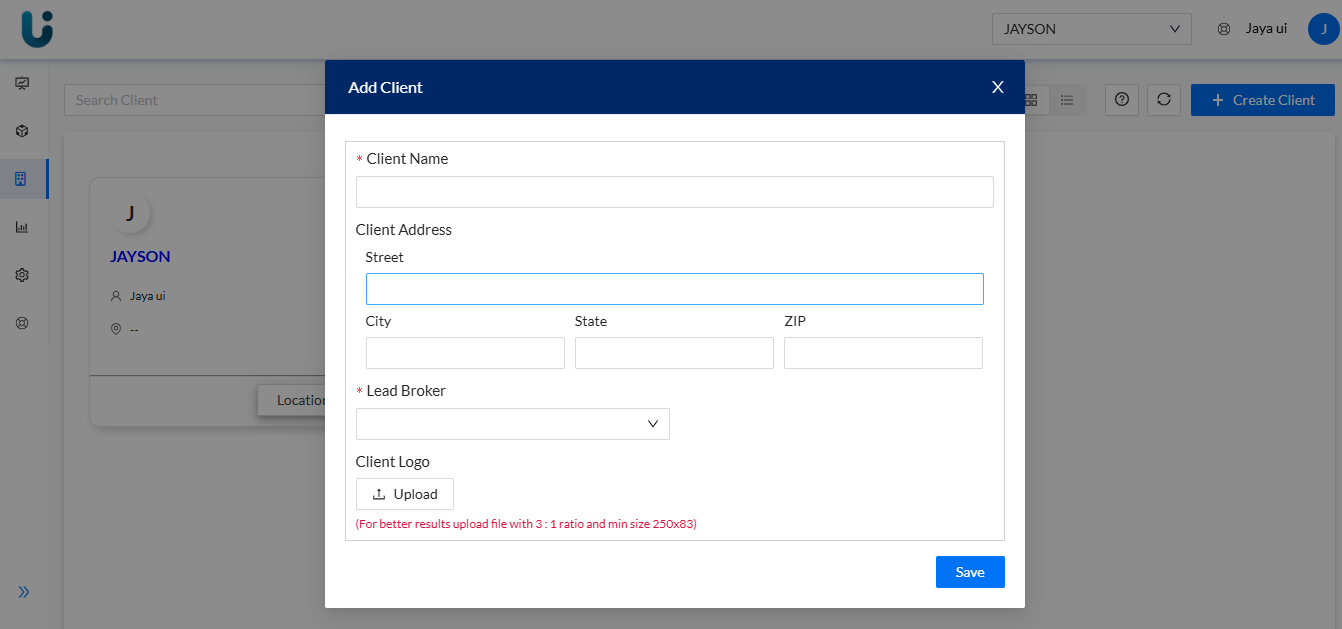
Fill in the Client Details
A pop-up window will appear where you can enter the necessary details about the new client. This typically includes the client's name, contact information, and other relevant details that are important for managing the client in the system.
Select a Lead Broker and Upload Client Logo
From the dropdown menu, select a Lead Broker who will be associated with this client. Additionally, upload the client’s logo according to the given specifications (such as size and format). This logo will appear in reports and throughout the system for easy identification of the client.
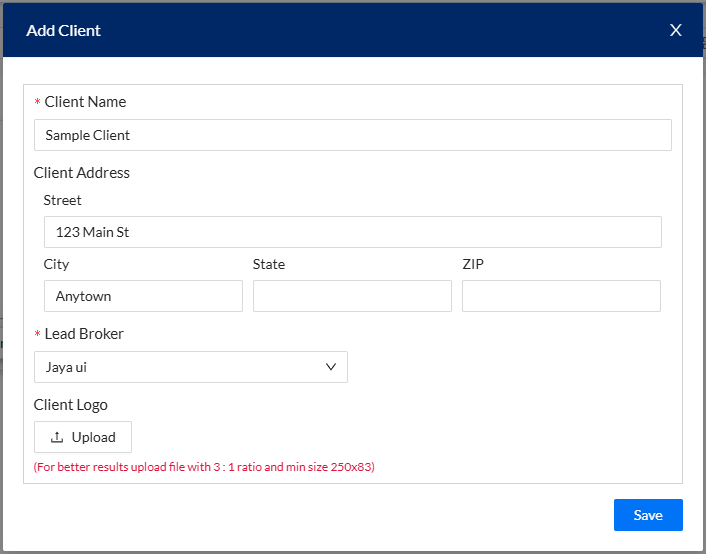
Click Save to Create the Client
After filling in all the necessary details, click on the Save button to finalize the creation of the new client.
View the Newly Created Client
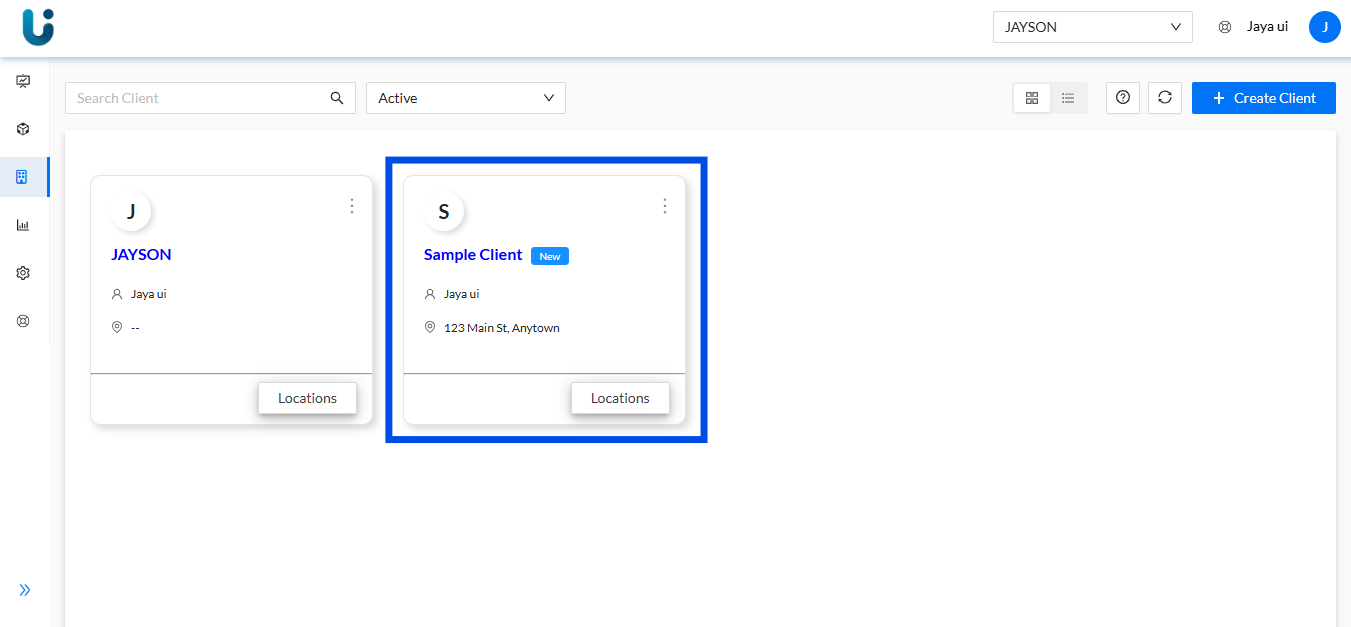
Once the client is created, you will be redirected back to the Client Dashboard, where you can view and manage the newly added client. You can now proceed to assign locations, upload documents, and start working with the client’s data.
What’s Next?
After creating the new client, you can move on to creating a Location associated with that client. From the Client Dashboard, select the client you just created from the dropdown on the location list page. This will allow you to set up specific locations for the client and proceed with uploading documents for processing.
Was this article helpful?
That’s Great!
Thank you for your feedback
Sorry! We couldn't be helpful
Thank you for your feedback
Feedback sent
We appreciate your effort and will try to fix the article