Client Management within the PredioAI platform enables seamless oversight and control of client-specific data. This functionality allows users to efficiently view, edit, and manage their clients, along with associated locations and critical data. It is designed to streamline workflows and improve accessibility to important information related to each client and their respective leases or contracts.
Steps for Client Management
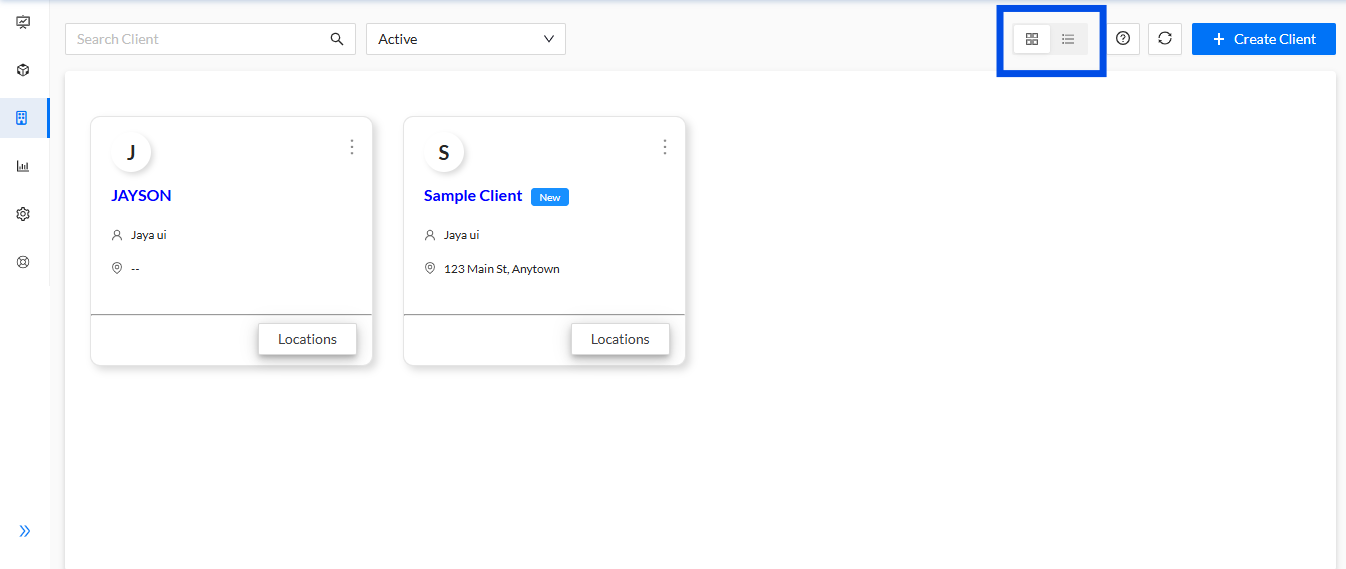
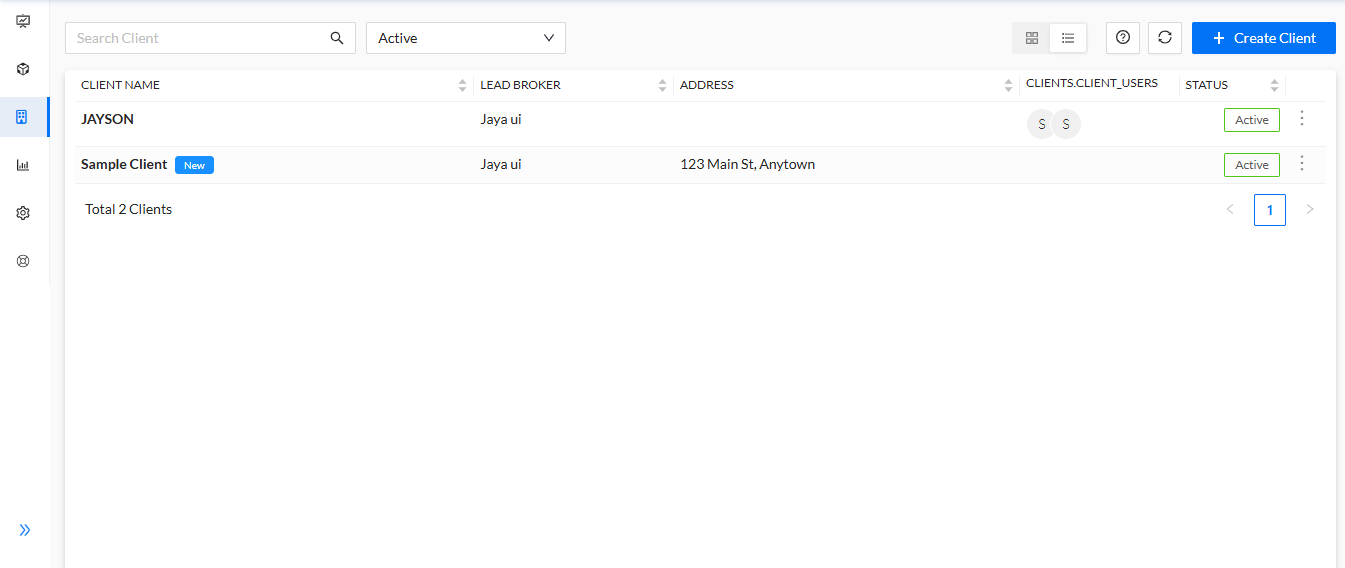
View Clients in Enhanced Tiles View or List View
Users can choose between two viewing modes: Enhanced Tiles View or List View. The Enhanced Tiles View provides a visually rich layout with cards for each client, showcasing key details. The List View offers a more text-based, concise listing of clients, allowing for quicker scanning of client names and attributes.
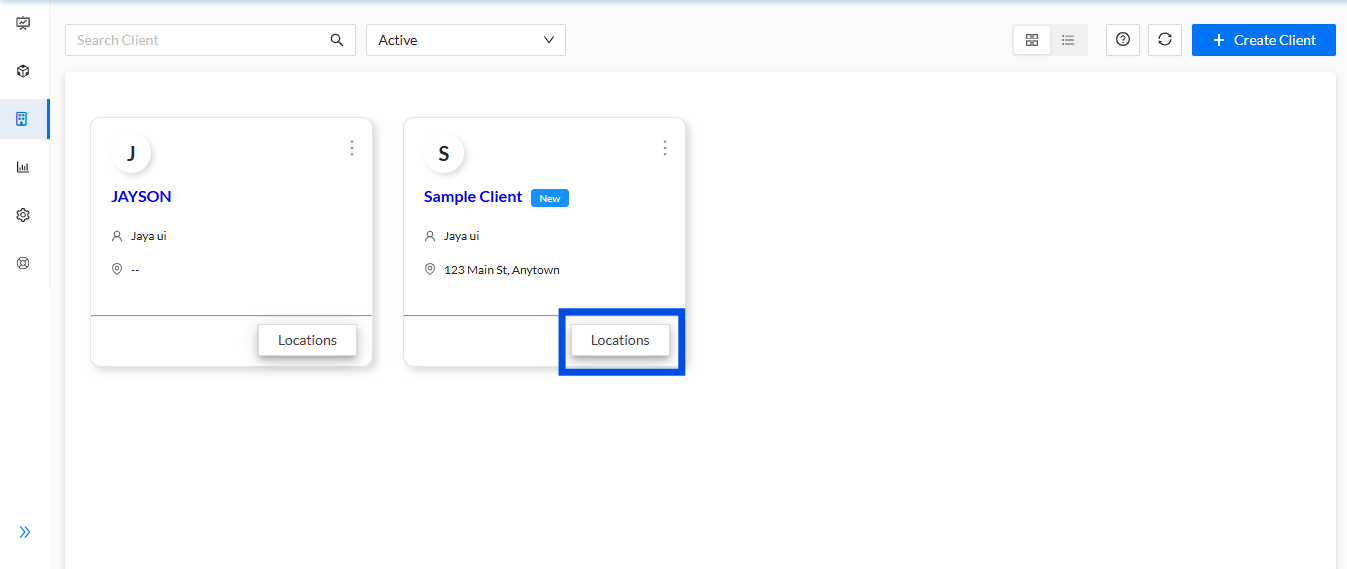
Navigate to Locations of a Specific Client
From the Client Dashboard, users can easily navigate to the locations associated with any given client. Simply click on a client, and the platform will display the locations tied to that client, allowing for efficient management of individual sites and their related documents.
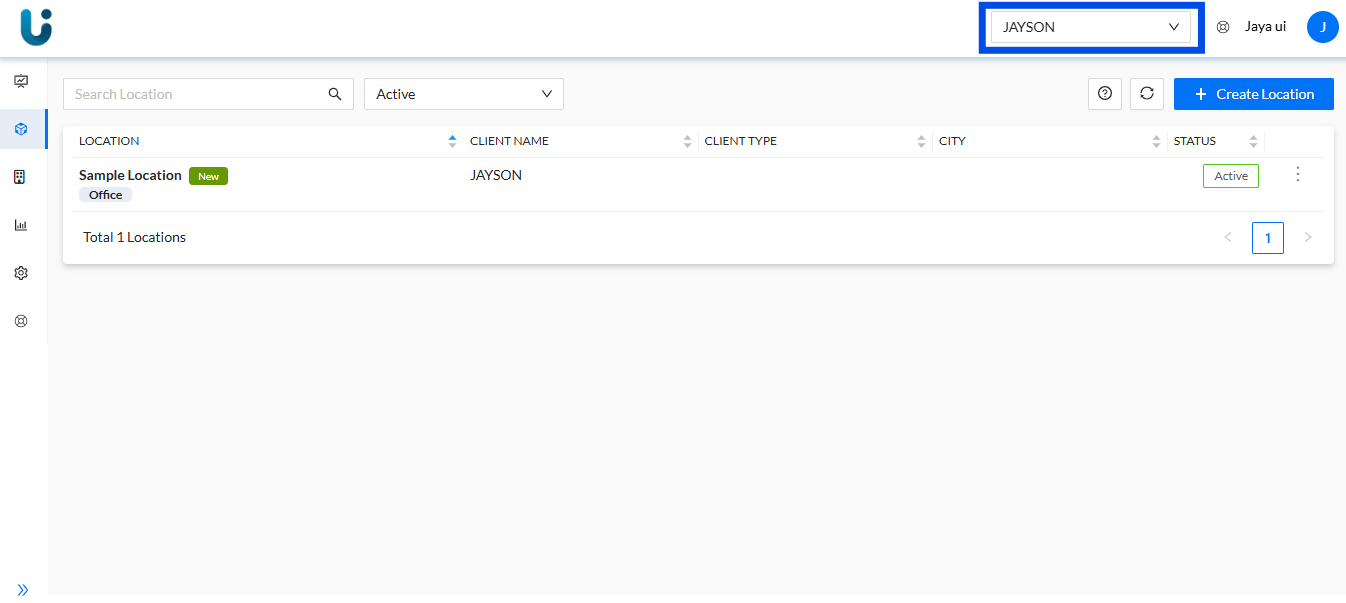
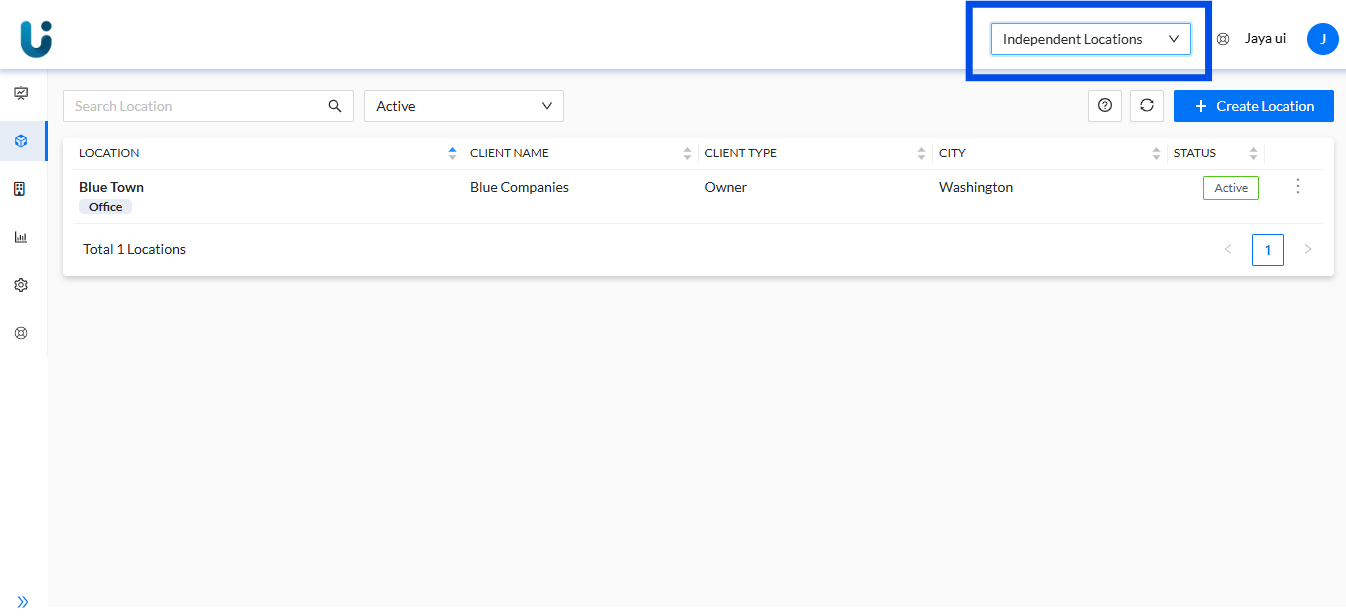
Switch Between Different Clients or Navigate to Independent Locations via Dropdown
The dropdown menu at the top of the dashboard enables users to seamlessly switch between multiple clients or access independent locations, making it easy to manage various clients or locations within a single session.
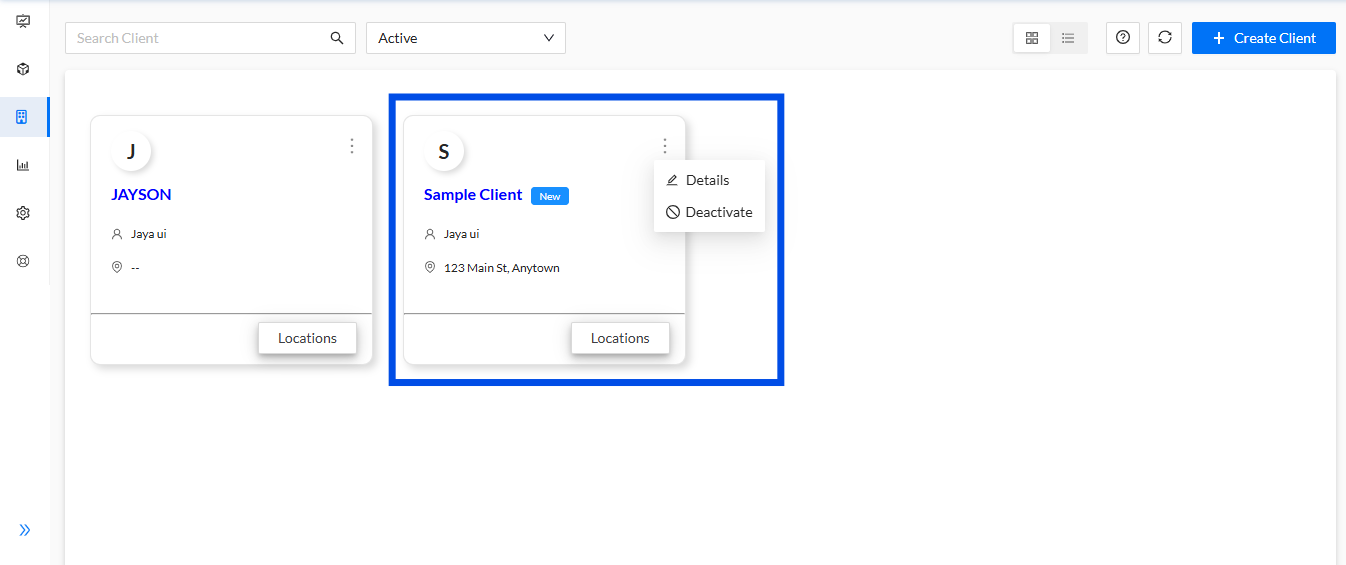
View Client Details or Deactivate Client Using the Menu Option
On the Client Tile Card, users have access to the Menu Option, where they can view detailed client information. If necessary, clients can be deactivated from this menu, making it easy to manage active clients and ensure the system stays up-to-date with current operations.
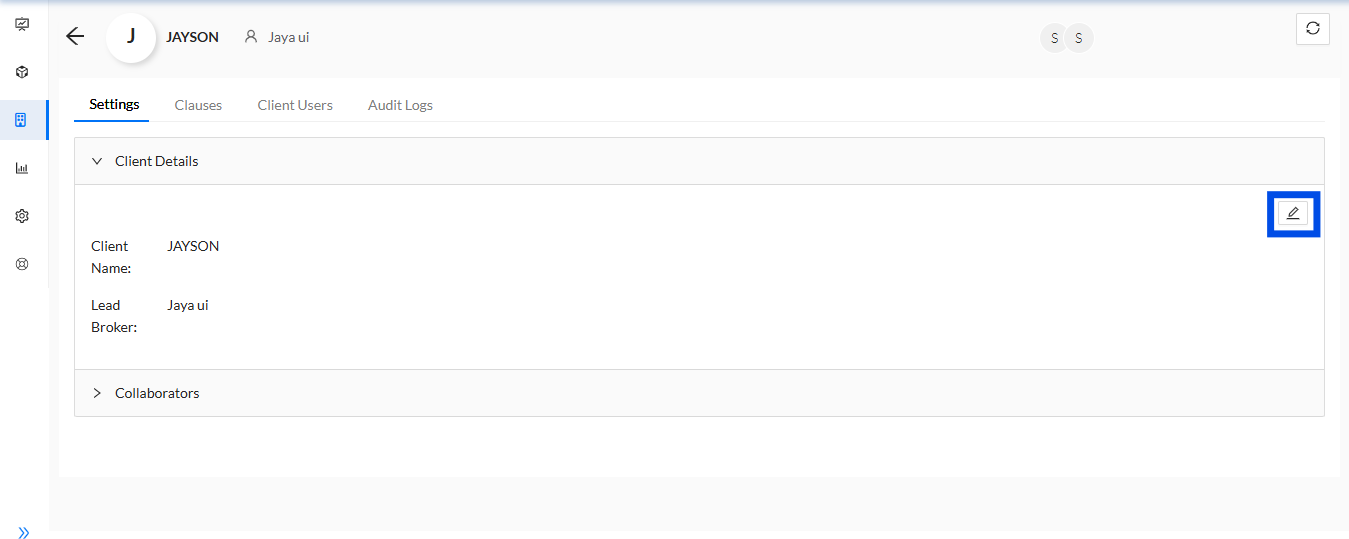
Edit Client Details
Users can edit client information directly within the platform interface. This feature allows for quick updates, ensuring client data is always accurate and current without needing to go through a cumbersome process.
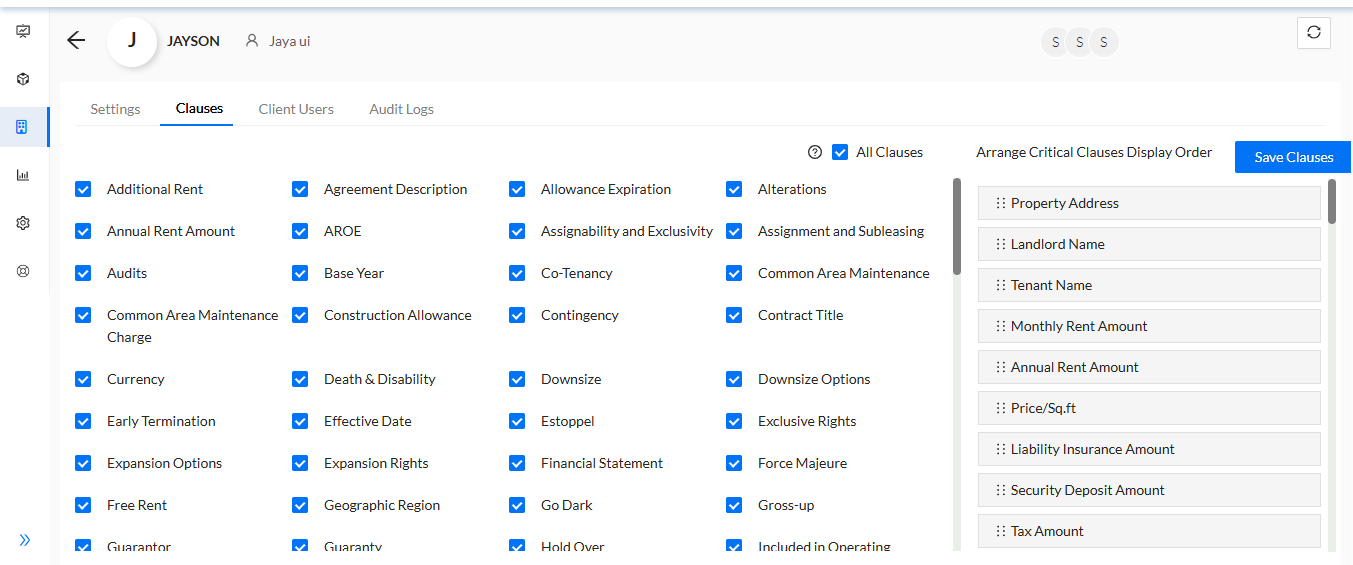
Edit Clauses and Arrange Critical Clauses Display Order
For each client, users have the ability to modify the display order of clauses and critical data points. This helps tailor the system to the specific needs of the client, allowing for customized views that prioritize the most important clauses or conditions in their contracts.
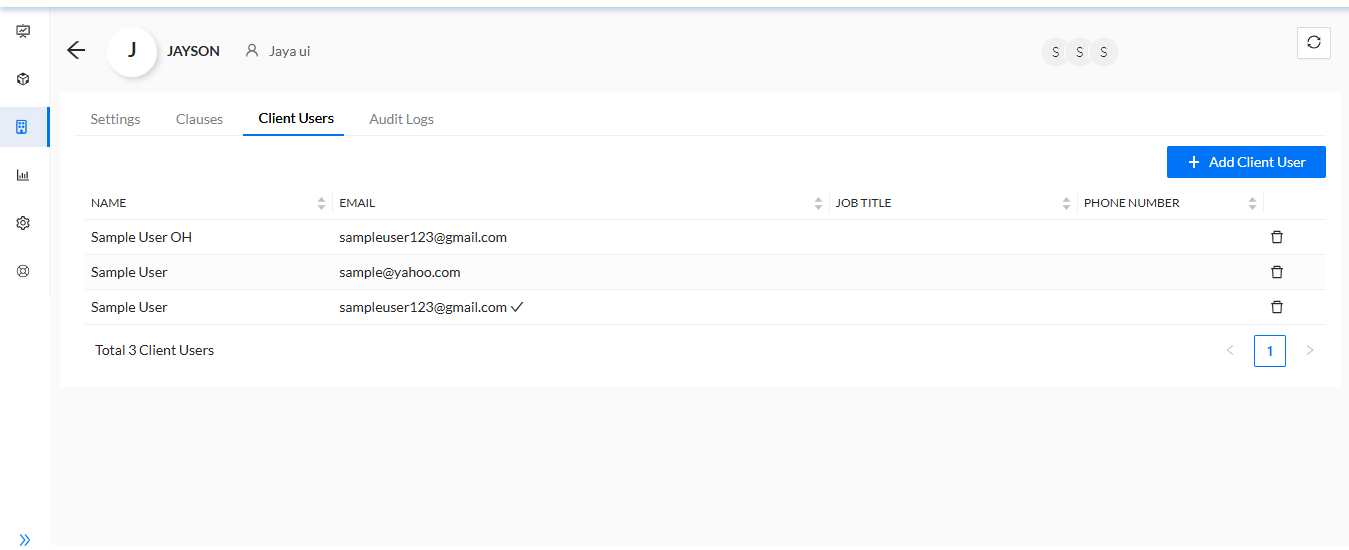
Add, Edit, or Delete Client User Details
Users can manage the client’s user access by adding, editing, or removing users from the system. This flexibility allows for secure access control, ensuring that only authorized individuals can view or manage specific client data.
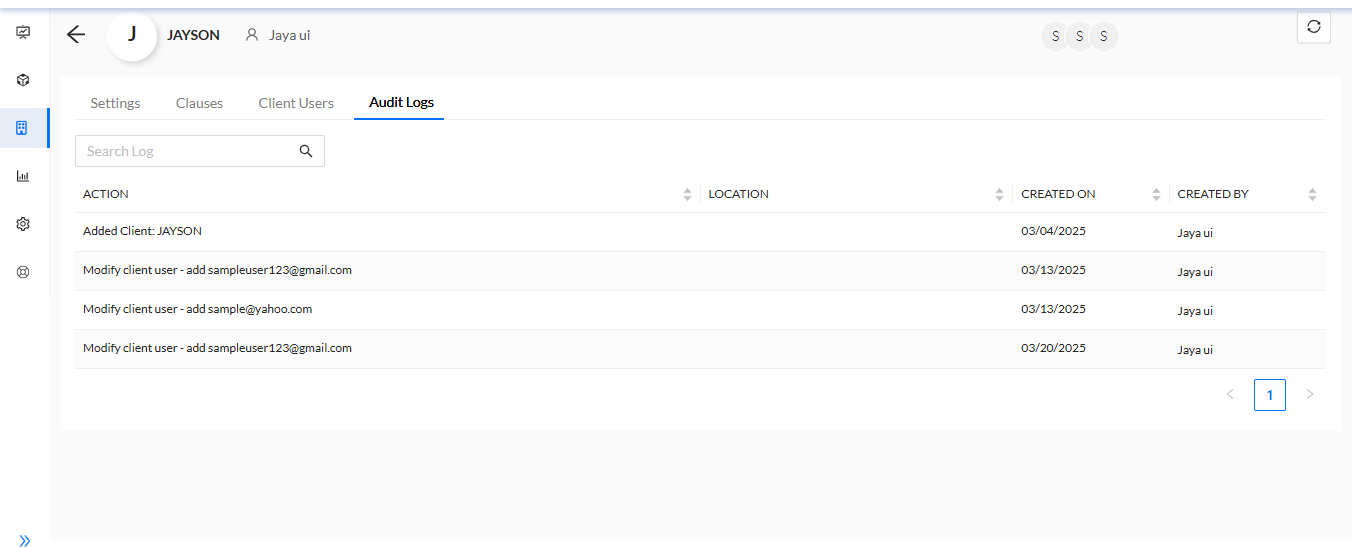
Audit Logs for Each Client
The platform automatically tracks and logs all actions taken for each client. These Audit Logs are available under each client profile and provide a detailed history of all modifications and activities, offering transparency and accountability for the actions taken.
What’s Next?
After managing client details, users can proceed to set up and manage Locations for that client, which are critical for organizing documents and information specific to different areas or properties. You can also upload files, set reminders, or review reports tied to those locations. From the Client Dashboard, it’s easy to monitor and manage clients throughout their entire lifecycle.
Was this article helpful?
That’s Great!
Thank you for your feedback
Sorry! We couldn't be helpful
Thank you for your feedback
Feedback sent
We appreciate your effort and will try to fix the article